How to Get Out of Repair State iPhone: Practical Steps
Learn how to safely exit the iPhone repair state with a clear, practical approach. This guide covers reboot methods, recovery/DFU exits, updates, backups, and when to seek official support from Home Repair Guide.


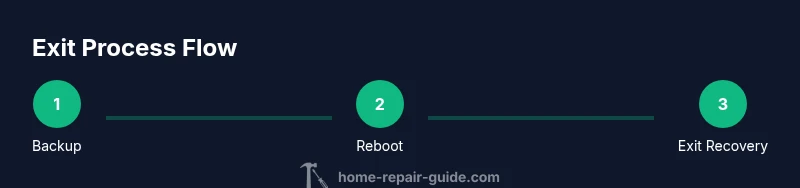
You can exit the iPhone repair state by following a structured sequence: perform a normal reboot, attempt a force restart if the screen is unresponsive, update iOS to the latest version, and, if needed, exit recovery or DFU mode with Finder (macOS) or iTunes (Windows). Always back up first, and contact Apple Support if the device won’t exit after these steps.
What the phrase 'repair state' means for iPhone users
According to Home Repair Guide, a device described as being in a repair state usually signals that the iPhone is not operating in its normal boot sequence and may be in recovery, DFU, or a vendor repair workflow. This state is not a permanent error; it’s a diagnostic or preparation phase that can often be reversed by following manufacturer-approved exit paths. Recognizing the difference between a simple reboot, a recovery loop, and a true DFU state helps you pick the correct next step. In the pages that follow, we outline safe methods to exit repair state while preserving data. Remember, the goal is to restore normal operation without introducing new risks, such as data loss or activation problems. This approach aligns with practical, home-friendly repair guidance from Home Repair Guide.
wordCount": 210
Tools & Materials
- iPhone with a working battery(Charge to at least 50% if possible before starting firmware-related steps)
- USB-C to Lightning cable or USB-C cable (depending on iPhone model)(Original cable recommended for reliability)
- Computer with macOS or Windows(Finder on macOS Catalina+ or iTunes on Windows)
- Latest version of Finder/iTunes(Ensure software is up to date to interact with the device)
- Apple ID credentials(Needed for backups and reactivation checks)
- Backup storage (iCloud or local computer)(Back up before any firmware/restore steps)
Steps
Estimated time: 30-60 minutes
- 1
Back up your iPhone
Begin by creating a current backup to avoid data loss during any repair-state exit. Use iCloud or your computer to back up apps, photos, messages, and settings. A recent backup is your safety net if a restore becomes necessary.
Tip: If you can’t access the device UI, trigger an iCloud backup from a connected Wi‑Fi network or use Finder/iTunes in recovery mode after confirming device connectivity. - 2
Check power and connectors
Ensure the device is charging and the cable, adapter, and port are clean. A marginal charge state can worsen firmware operations or cause unexpected reboot loops. Try a different charger if the battery status seems unstable.
Tip: A stable power supply reduces the risk of interruptions during firmware updates or DFU exits. - 3
Perform a normal reboot
Force a clean restart if the screen is responsive. Power off completely, wait a few seconds, then turn the device back on. This can exit simple repair-state glitches without touching firmware.
Tip: A short power cycle can resolve minor stalls without risk to data if the device responds. - 4
Attempt a forced restart if unresponsive
For devices with Face ID: quickly press and release the Volume Up button, then the Volume Down button, then press and hold the Side button until the Apple logo appears. This action should trigger a fresh boot and may exit the repair state.
Tip: Avoid repeated pressing if you notice rapid battery drain; stop and reassess before retrying. - 5
Update iOS to the latest version
If the device boots, check for a software update and install the latest iOS. Updates can fix bugs that can cause repair-state confusion and improve compatibility with exit procedures.
Tip: Back up before updating in case the process requires a restore. - 6
Exit recovery/DFU mode using a computer
If the iPhone is stuck in recovery or DFU mode, connect it to a computer. Use Finder on macOS or iTunes on Windows to exit recovery: choose your device, and select 'Exit Recovery' or restore as appropriate. This step is often necessary when automatic exits fail.
Tip: Follow on-screen prompts precisely; abrupt disconnections can corrupt firmware. - 7
Restore to factory settings if needed
When exit attempts fail, restoring the device to factory settings can clear problematic firmware states. This action erases all data, so you must have a recent backup to recover afterward. After restoration, set up the iPhone from the backup if possible.
Tip: Use a clean restore to avoid legacy configuration conflicts; avoid restoring from a potentially corrupted backup if issues persist. - 8
Re-activate and reconfigure
After a successful exit or restore, sign in with your Apple ID, re-enable essential services, and restore apps and data from your backup. Verify that the device boots normally and runs usual apps without recurrent repair-state prompts.
Tip: Test critical apps early to confirm stability before continuing with daily use.
FAQ
What does it mean if my iPhone is in repair state?
Repair state generally indicates the device is not booting normally and may be in recovery or DFU mode, or flagged by a repair tool. Exiting requires following safe exit paths, often starting with a reboot and moving to recovery exits if needed.
It means the device isn't starting normally and may be in a diagnostic or repair mode, so you’ll follow safe exit steps.
Can I exit repair state without data loss?
Yes, if you catch the issue early and avoid a full restore. Start with backups, a normal reboot, and, if necessary, exiting recovery via Finder/iTunes. A restore should be reserved for when other exits fail and you have a backup.
Usually you can exit without data loss by rebooting and exiting recovery, but a restore will erase data unless you’ve backed up.
What should I do if the device won’t exit after all steps?
If exit attempts fail, contact Apple Support or visit an authorized service provider. They can assess hardware or firmware issues and guide you through safe diagnostics without risking data.
If nothing works, get professional help to avoid further damage.
Is DFU mode different from recovery mode?
DFU mode is a deeper restore state that can require specialized steps to exit. Recovery mode is a standard troubleshooting state. Exiting both usually involves a computer-based restore or firmware reinstallation.
DFU is a deeper restore state; recovery is more common. Exiting often needs a computer-based restore.
Should I try third-party repair tools to exit repair state?
No. Third-party tools can compromise device security and stability. Always rely on Apple-supported methods and official software when exiting repair state.
Avoid third-party tools; use official methods.
Watch Video
Key Takeaways
- Back up before attempting any exit from repair state
- Follow official steps first: reboot, then exit recovery/DFU via Finder/iTunes
- Update iOS; a fresh software state can resolve repair-state issues
- Restore as a last resort; data loss is a real risk without a backup
- Seek official support if the device still won't exit after guided steps