Why is Service Down? A Practical Troubleshooting Guide
An urgent, step-by-step guide to diagnose and fix outages at home. Learn to tell if it’s local or provider-wide and what to do next.


Most likely the service is down due to a provider outage or scheduled maintenance rather than a problem on your device. Start by checking your service status page and outage maps, then verify whether other devices or neighbors report the same issue. If you confirm an outage, contact your provider for updates and avoid unnecessary resets that could delay resolution.
What It Means When a Service Is Down
When you ask why is service down, the short answer is usually an external outage or scheduled maintenance rather than a problem on your device. This is why you should start by confirming whether the issue is isolated to your home network or affecting a wider area. According to Home Repair Guide, most outages are caused by providers, fiber cuts, or regional network maintenance. If neighbors report the same problem, the fault is likely outside your home. Avoid frantic resets and focus on status updates from your provider to triage more effectively and set realistic expectations for restoration. This quick understanding helps homeowners and renters stay calm and act decisively.
Common Causes of Service Outages
Outages happen for several reasons, and knowing the likely culprits helps you respond quickly. The most common include provider outages or maintenance, regional fiber cuts, or planned upgrades that temporarily disrupt service. Local issues such as a failed modem, damaged cables, or power interruptions at your site can also cause downtime, especially for wired services. Weather events and infrastructure aging contribute to sporadic faults. If you rely on a business line or VOIP, account holds or billing flags can halt service even when external systems are technically fine. Understanding these causes helps you target the right fixes, avoid unnecessary resets, and communicate clearly with anyone who depends on the service.
How to Distinguish Local Issues from Widespread Outages
The easiest way to gauge scope is by checking multiple devices and networks. If your mobile data shows a live connection while home Wi-Fi is down, the issue may be local to your router or home network rather than the provider. Conversely, if you notice the same problem across phones, tablets, and laptops on different ISPs, a provider-wide outage is likely. Check the provider’s official status page and outage map for reports from your area, and search social channels or community forums for regional patterns. If several nearby households report outages, plan for a probable service window rather than hoping for an immediate fix.
Quick Verification Steps You Can Do Right Now
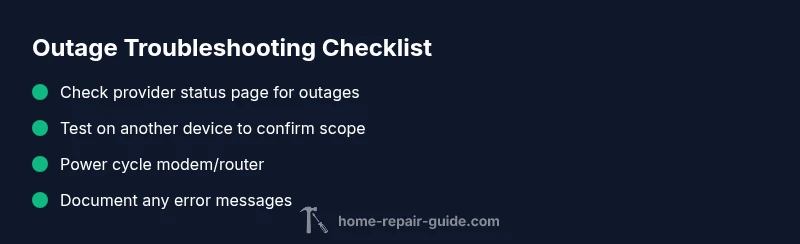
- Confirm outage status on your provider’s status page and outage maps. - Test connectivity on a different device and network (mobile hotspot, public Wi-Fi) to separate device vs. network issues. - Inspect physical connections: power to the modem, coax/ethernet cables, and any LEDs indicating status. - Restart devices in a logical sequence: modem, router, then end devices, giving each step a full minute to reacquire a connection. - Note any error messages or codes; these can speed up support conversations. If you’re in a critical situation (health, safety, or security), use mobile data or a backup network immediately.
Diagnostic Flow: Symptom to Solution
Symptom: Service appears down across devices on the same network. Causes: 1) Provider outage (high) 2) Local hardware fault (medium) 3) Billing hold or account issue (low). Fits: Try the simple fixes first (power cycle, check status page). If no improvement, escalate to provider support with the error messages and outage codes you collected. This structured approach saves time and reduces frustration for everyone involved.
Step-by-Step Fixes for the Most Common Cause
- Verify outage with status page (Provider-wide issue) - Check other devices and neighbors. 2) Power cycle the modem/router (easy) - Unplug for 60 seconds, plug back in, wait for reboot. 3) Check physical connections (easy) - Ensure cables are snug and not damaged. 4) Reset network settings on affected devices if connections fail (easy). 5) Check account status or billing flags with the provider (easy) - Resolve any holds that may suspend service. 6) If still down, contact support with outage details and timestamps (easy).
Safety Tips and When to Call a Pro
- Do not attempt invasive repairs to outdoor lines or utility pedestals. Leave those tasks to licensed professionals. - Be cautious about wiring or power sources; always unplug devices before inspecting internal components. - If the outage affects critical systems (medical devices, security systems), use backup networks and contact emergency or support services as needed. - When in doubt, schedule a professional assessment if the problem persists for hours or recurs frequently.
Prevention and Best Practices for Future Outages
- Maintain a small set of backup connectivity options (mobile hotspot, portable Wi-Fi, or a secondary ISP) to reduce downtime during outages. - Keep an outage log: note dates, times, and what devices were affected to help with future debugging and provider conversations. - Regularly update firmware on modems/routers and review your home network topology to minimize single points of failure. - Set up alerts from your provider for outage notifications and explore device-level diagnostics to catch issues early.
Steps
Estimated time: 60-90 minutes
- 1
Confirm outage scope
Open the provider status page and outage map. Check if neighbors report the same issue to determine if the fault is provider-wide or local.
Tip: Document timestamps and any outage codes for faster support. - 2
Check local hardware
Inspect the modem, router, and cables. Look for power indicators and ensure all cables are intact and snug.
Tip: Replace a damaged cable and retest if you notice wear. - 3
Power cycle devices
Unplug the modem and router for 60 seconds, then plug back in starting with the modem. Allow full reboot before testing.
Tip: Avoid multiple rapid restarts in a row; give each stage time to settle. - 4
Test on another device/network
Connect a device directly to the modem or use a mobile hotspot to see if the issue persists across networks.
Tip: If mobile data works, the problem is likely local to your Wi-Fi. - 5
Check account status
Log in to the provider’s account portal to verify there are no holds or billing flags that could suspend service.
Tip: If you find a billing issue, address it promptly to restore service. - 6
Escalate to support
If the outage continues beyond the ETA, contact customer support with your symptom log, outage codes, and timestamps.
Tip: Ask for an estimated restoration time and any workarounds.
Diagnosis: Service outage reported across multiple devices
Possible Causes
- highProvider outage or maintenance
- mediumLocal router/modem issues
- lowBilling or account hold
Fixes
- easyCheck provider status page and outage maps to confirm scope
- easyPower cycle modem/router for 60 seconds, then re-test connectivity
- easyVerify cables are connected and devices show stable power/LED indicators
- easyTest with a different device or network to isolate issues
- easyCheck account status with the provider for holds or billing blocks
FAQ
What causes a service outage at home?
Outages are usually due to provider issues, scheduled maintenance, or regional disruptions. Local hardware faults or account holds can also cause downtime.
Outages are typically provider-related or due to maintenance, with local hardware faults as a secondary possibility.
How can I tell if the outage is local or widespread?
Check the provider status page and outage maps, and test on another device or network to compare results. If nearby users report the same issue, it’s likely widespread.
Use the status page and tests on other networks to determine scope.
Should I reset my modem during an outage?
Resetting can help, but do so once. If it doesn’t restore service, avoid repeated resets and proceed with the status checks and support contact.
A single reset may fix things, but don’t overdo it during an outage.
How long do outages typically last?
Durations vary by cause and region. Check the provider’s ETA on their status page and follow any official updates for the latest restoration timelines.
Outages vary; the status page will give you the best ETA.
What should I do if I rely on critical services?
Activate backup connectivity (mobile data) and notify essential contacts. If downtime affects health or safety, use alternative channels for urgent needs.
Have a backup plan and contact emergency channels if needed.
When should I contact support for account issues?
If you suspect billing holds or account flags are causing the outage, reach support to resolve the issue and restore service.
Contact support if you think your account is blocked or billed incorrectly.
Is it worth scheduling a professional check for recurring outages?
Yes. If outages recur, a professional assessment can identify hidden hardware faults or line issues that self-troubleshooting misses.
If outages keep happening, a pro can diagnose hidden problems.
Watch Video
Key Takeaways
- Identify if outage is local or provider-wide
- Follow a practical, step-by-step verification sequence
- Power cycle hardware before deeper troubleshooting
- Document outage details for faster support
- Use backups and have a plan for emergencies