What is Wrong with Cell Service Today? A Practical Troubleshooting Guide
Struggling with cell service today? This urgent troubleshooting guide helps homeowners diagnose outages, isolate device vs network issues, and restore reliable mobile connectivity quickly.


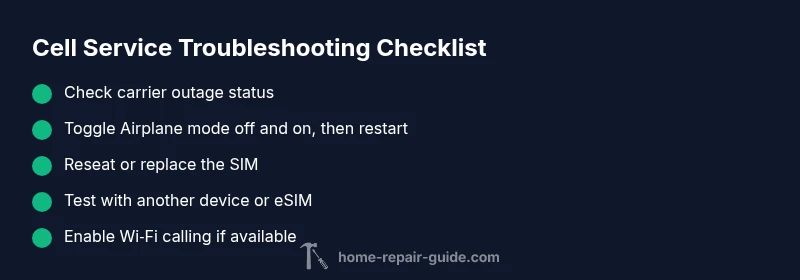
Today’s cell service issue is most often a carrier outage or a device misconfiguration. Start by turning off Airplane mode, rebooting your phone, and reseating the SIM. If it persists, check outage pages and test another device or SIM to isolate the root cause. This practical flow is from Home Repair Guide.
Why cell service is flaky today
Cell service reliability in a typical neighborhood can be affected by several factors: the strength of the carrier's signal, geographic obstacles, weather, network maintenance, and device settings. The question many homeowners ask is what is wrong with cell service today? The answer often combines network operations with user-side configuration. According to Home Repair Guide, the most common culprits right now include temporary outages or maintenance work in your area, high network load during peak hours, and devices that are not optimally configured to switch between 4G/5G or different bands. If your area has multiple carriers, one may be performing upgrades while another remains stable, which can create the illusion of inconsistent service. Weather events like heavy rain or storms can degrade signals temporarily, especially if you are near tall buildings, hills, or indoor locations with thick walls. Understanding these dynamics helps you approach troubleshooting in a structured way instead of assuming the problem is permanent hardware failure.
Quick checks you can do right now
- Check if Airplane Mode is on and toggle it off, then restart your device.
- Confirm the SIM card is seated properly or try reseating it.
- Look up official outage alerts for your carrier and nearby regions.
- If you have a secondary device or eSIM, test service there to confirm if the issue is device-specific.
- Ensure your device is updated to the latest software and that you have the correct network settings.
Determine if the issue is device vs network
There are two primary paths: network-level problems and device-level misconfigurations. If multiple devices in your home report the same outage, the issue is likely network-related. If only one device is affected, start with device checks—SIM, settings, and OS updates. In some cases, roaming status, VPNs, or security apps can interfere with signal handling, so consider temporarily disabling non-essential services to test. This bifurcation helps you avoid chasing problems that aren’t there and speeds up recovery.
How to verify a carrier outage
Use official status pages or social channels for your carrier. Look for messages about maintenance windows, regional outages, or capacity upgrades. Cross-reference with third-party outage maps for your locale, but prioritize carrier announcements. If there is a confirmed outage, your best course is to wait for service restoration while using Wi‑Fi calling if available, or alternate connectivity options. Home Repair Guide notes that outages are usually resolved within hours, but exact timing varies by location and technology.
Device checks you should perform
- Reboot the device completely; a fresh boot can clear temporary network caches.
- Remove and reinsert the SIM or try a different SIM to see if the issue follows the card.
- Check that you are on a supported network mode (4G/LTE or 5G as appropriate) and that roaming is enabled if you’re traveling.
- Test with Wi‑Fi calling if your carrier supports it; this can provide short-term connectivity during outages.
- Update the device’s operating system to ensure the latest radio firmware is installed.
Advanced network settings to review
- Verify APN settings match your carrier’s recommended values; misconfigured APN can block data connectivity.
- Confirm you are not hard-blocked on a carrier plane or eSIM profile; re-activate if needed.
- Toggle between 4G/5G networks to observe signal stability; sometimes one band performs better in your area.
- Reset network settings as a last resort if nothing else works; note this will erase saved Wi‑Fi networks and passwords.
When to contact your carrier
If outages persist after you have completed the basic checks and you have confirmed there is no known maintenance window, contact your carrier’s support line. Collect your device model, OS version, SIM type (physical or eSIM), and the approximate location where the issue occurs. Ask for a prorated outage ETA if applicable and request guidance on any temporary workarounds like Wi‑Fi calling. Persistently unresolved issues may indicate a SIM replacement or account-level problems that require agent intervention.
Safety and best practices while troubleshooting on mobile networks
Never attempt to disassemble the device or force hardware components that are not user-serviceable. Avoid driving in unsafe conditions to test signal, and do not share sensitive accounts while testing network services on public networks. Use official carrier websites for outage information and ensure you are connected to a secure Wi‑Fi network when following guides online.
What to monitor over the next 24-48 hours
Track whether the outage is resolved, fluctuates by time of day, or shows regional patterns. If service returns intermittently, note whether certain apps or locations (indoors vs outdoors) perform differently. Keep your OS and radio firmware up to date, and consider enabling Wi‑Fi calling as a backup during outages. If issues persist beyond typical restoration windows, escalate with your carrier and consider a temporary alternative connectivity plan.
Steps
Estimated time: 45-90 minutes
- 1
Confirm outage status
Begin by checking your carrier’s official outage page, social channels, or status updates for your area. If there is an active outage, you may simply need to wait for restoration. If there is no outage, proceed to device checks.
Tip: Note the approximate time of outage announcements to compare with your experience. - 2
Check device basics
Ensure Airplane mode is off, restart the phone, and verify the SIM is properly seated. A quick reboot can clear temporary glitches.
Tip: Do this before diving into settings changes. - 3
Test with another device or SIM
If available, insert a different SIM into your device or use another phone to see if the problem follows the SIM or the device.
Tip: This helps isolate whether the issue is hardware or SIM-related. - 4
Review network settings
Check that the device is using the correct network mode (4G/LTE or 5G where available) and that roaming is enabled if abroad. Update APN settings if needed.
Tip: Incorrect APN can block data without affecting voice. - 5
Reset network settings (if needed)
As a last resort, reset network settings to restore default radios and configurations. This may require re-adding Wi‑Fi networks and re-authenticating with apps.
Tip: Only perform this if simpler fixes fail. - 6
Escalate if unresolved
If service does not return within a reasonable window, contact your carrier with device details, location, and outage references. Consider temporary alternatives like Wi‑Fi calling.
Tip: Provide the exact time you first noticed the issue and any carrier messages.
Diagnosis: Frequent drop in signal or no service on mobile device
Possible Causes
- highCarrier network outage or maintenance
- highAirplane mode is enabled or device not registering on the network
- mediumSIM card seated incorrectly or damaged
- mediumPhone not registered on the correct network or SIM locked
- lowSoftware or misconfigured network settings
Fixes
- easyCheck for official outage alerts on your carrier's status page or social channels
- easyToggle Airplane mode off and back on, then restart the phone
- easyReseat the SIM card or try a different SIM to see if the issue follows the card
- mediumEnsure the device is unlocked and supports the correct network bands; re-activate eSIM if needed
- easyReset network settings or perform a software update to fix misconfigurations
FAQ
What should I do first if I have no service on my phone?
Start by checking for an official outage, toggle Airplane mode off, reboot the device, and reseat the SIM. If the issue remains, test another device or SIM to determine whether the problem is device- or network-related.
First, check for outage info, restart, and reseat the SIM to isolate the cause.
How can I tell if the problem is a carrier outage vs my device?
If multiple devices show the same issue, it’s likely a carrier outage. If only one device is affected, focus on device settings, SIM health, and OS updates.
If several devices are affected, it’s probably the carrier; if just one device, check its settings and SIM.
Is resetting network settings safe?
Resetting network settings is generally safe and can fix misconfigurations, but you may need to rejoin Wi‑Fi networks and re-enter passwords.
Resetting network settings can fix issues, but you’ll reconnect to Wi‑Fi afterward.
When should I contact my carrier?
Contact your carrier if outages persist after completing basic checks for several hours, or if there are known maintenance windows impacting your area.
If the outage lasts beyond a few hours, contact your carrier with your location and device details.
Does changing network mode help on older devices?
Switching between 4G/5G can help on older devices that struggle with newer bands. Test to see which mode provides the most stable connection.
Try different network modes to see which works best in your area.
Can a damaged SIM cause no service even if it’s seated?
Yes, a damaged SIM or one with corrupted data can cause no service. Try replacing the SIM with a new one from your carrier.
A bad SIM can cause no service; replace it if unsure.
Watch Video
Key Takeaways
- Check for carrier outages first
- Restart and reseat the SIM to quickly rule out simple fixes
- Test with another device or SIM to isolate the root cause
- Update network settings or reset them if needed
- Contact your carrier with detailed outage info if issues persist