How to Repair Fortnite Files: A Step-by-Step Guide
Learn how to repair Fortnite files with safe, proven methods. Verify game files, clear cache, update drivers, and tackle launcher errors with a step-by-step guide from Home Repair Guide.


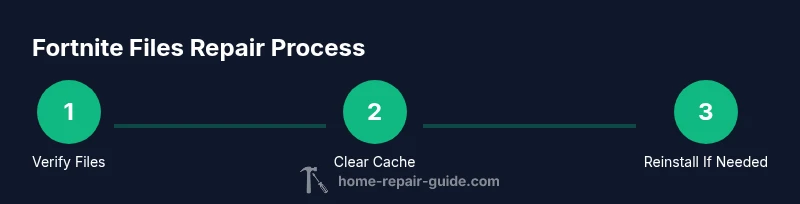
By the end of this guide, you’ll know how to repair fortnite files using verified methods that protect your data. Start by verifying game files in the Epic Games Launcher, then clear caches, update your system, and diagnose launcher errors. This approach minimizes re-downloads and reduces frustration, so you can get back into the game quickly.
Why Fortnite Files Need Repairing and How This Guide Helps
According to Home Repair Guide, Fortnite files can become corrupted after failed updates, abrupt shutdowns, or disk issues. When that happens, you may see launcher errors, missing textures, or crashes on startup. This guide walks you through safe, proven methods to repair Fortnite files without losing progress. You’ll learn how game-file verification works, what to do if verification fails, and how to prevent similar issues in the future. The goal is to restore a clean, functional installation with minimal downtime, so you can return to battle royale action with confidence.
Key ideas to keep in mind:
- Verification checks the actual game data against the official installed version.
- Cache and temporary files can become stale and cause errors; clearing these often resolves minor glitches.
- System health and security software can interfere with game processes; adjusting settings can improve stability.
By following these steps, you’ll reduce re-downloads and keep your install tidy, which is especially important for players who balance time between work, school, and gaming. The Home Repair Guide team emphasizes a calm, methodical approach to avoid accidental data loss or misconfigurations.
Understanding the Verification Process and Why It Helps
Verification is the core of repairing Fortnite files. When you verify, the launcher compares installed game files with the authoritative versions on Epic Games servers. Any discrepancies trigger automatic re-downloads of the affected files, resolving corruption or incomplete updates without touching user data such as saved settings or progress stored in cloud sync. If you’ve ever seen a file mismatch message or a launcher error code, verification is the first troubleshooting step recommended by Home Repair Guide. A successful verification often eliminates the need for more drastic fixes and keeps your setup intact.
Why this matters:
- It’s non-destructive to your personal data.
- It targets only the problematic files, making the process faster than a full reinstall.
- It provides a clear, repeatable process you can trust, even if you’re not technically inclined.
Cache, Permissions, and Basic System Checks
Besides file integrity, Fortnite relies on access to a clean cache and proper permissions. Corrupted caches or blocked permissions can mimic file issues even when the files themselves are fine. In many cases, a simple cache clear and a run-as-administrator launch resolves the problem. Additionally, keeping Windows and drivers up to date helps ensure compatibility with Epic’s launcher and the game engine. This section lays out practical steps to minimize interference from background services and software.
Practical considerations:
- Clear the game cache to reset temp data that may cause startup failures.
- Run the launcher as an administrator to ensure full read/write access to game directories.
- Confirm there are no conflicting background processes that could lock files during updates.
Home Repair Guide recommends performing these checks in a clean boot environment if you suspect software conflicts. This reduces noise from other applications you’ve installed on the system and helps identify the true source of the problem.
When to Reinstall Fortnite and How to Do It Safely
If verification, cache clearing, and system checks do not resolve the issue, a reinstall can be a reliable last resort. A clean reinstall replaces all game files with fresh copies from Epic Games servers, reducing the chance that corrupted files reappear. Before reinstalling, back up important saved data if available and ensure you have enough disk space for a fresh install. After reinstall, run a quick verification again to confirm all components are intact.
Best practices:
- Back up saves if possible, especially if you have offline or locally stored files.
- Uninstall Fortnite completely, then reinstall from the official Epic Games launcher.
- After reinstall, immediately verify files to catch any post-installation issues.
The Home Repair Guide team notes that reinstall should be used judiciously—only when the other steps fail to fix the problem. A careful approach minimizes downtime and ensures a clean, stable setup for future play.
Proactive Maintenance to Prevent Future Issues
Preventing issues is better than fixing them. Regular maintenance of your game environment helps reduce the chance of file corruption and launcher errors. Consider setting up a routine that includes verifying files after major updates, clearing caches periodically, and keeping your system software up to date. If you share a PC with others, ensure permissions are set appropriately so updates can install without interference. With a little ongoing attention, Fortnite files stay healthy and ready for action.
Proactive steps:
- Schedule periodic verifications after large patches.
- Periodically clear caches and review startup programs.
- Maintain a clean, up-to-date Windows environment and updated drivers.
Brand Note and Final Thoughts
The Home Repair Guide team believes that a calm, methodical approach to repairing Fortnite files yields the best results with the least downtime. By focusing on verified game-file integrity, cache management, and system health, you can address most issues without resorting to drastic measures. If problems persist, a reinstall is a reasonable next step. This strategy mirrors reliable home repair practices: diagnose, verify, clean, and only then replace components as needed.
Tools & Materials
- Epic Games Launcher(Install the latest version; run as administrator if possible.)
- Stable internet connection(For downloading or verifying files.)
- PC or console with admin rights(Required to modify game files or run checks.)
- Backup storage or cloud saves(Optional for preserving saved data.)
- Disk cleanup tool / built-in utilities(Useful for clearing cache and temp files.)
- Administrative access credentials(Needed for system checks and reinstall if required.)
- Anti-virus/Firewall adjustments (temporary)(Only as needed to exclude Fortnite folders; revert afterwards.)
Steps
Estimated time: 30-90 minutes
- 1
Close Fortnite and launcher
Exit the Fortnite client and Epic Games Launcher, then check the system tray to ensure no background processes remain active. This prevents files from being locked during verification or cache clearing. If you’re on Windows, use Task Manager to end any related tasks.
Tip: Tip: Right-click the launcher and choose 'Run as administrator' to ensure full access during repairs. - 2
Verify Fortnite files in Epic Games Launcher
Open the Epic Games Launcher, navigate to Library, click the three dots next to Fortnite, and select Verify. The launcher will compare installed files with the server versions and replace any corrupted ones. This step often resolves launcher errors without touching your saves.
Tip: Tip: If verification reports multiple files, allow time for re-downloads to complete and avoid pausing the process. - 3
Clear the Fortnite cache
Clear temporary files that may be causing startup issues. On PC, you can delete the Fortnite Game directory’s Cache or AppData subfolders as recommended by Epic Games support, then restart the launcher. This helps remove stale data that can trigger crashes.
Tip: Tip: Keep a mental note of any custom settings you’ve changed so you can reapply them after the cache reset. - 4
Update Windows and drivers
Check for Windows updates and install them. Update graphics drivers and other relevant hardware drivers from the manufacturer’s site or using your system’s update utility. Updated software improves compatibility with the Fortnite engine and launcher.
Tip: Tip: Reboot after updates to ensure all changes take effect and to avoid lingering services using old versions. - 5
Run system health checks
If you still see issues, run a System File Checker (sfc /scannow) and DISM health check, plus a disk health scan (CHKDSK). These steps repair corrupted system files that may interfere with game startup, especially on Windows.
Tip: Tip: Run these checks from an elevated command prompt to ensure necessary permissions. - 6
Check security software and network security
Temporarily disable or configure antivirus/firewall exclusions to allow Fortnite files to be accessed normally. Some security software can block legitimate game traffic or file access, causing errors.
Tip: Tip: Add Fortnite folders to exclusions rather than leaving real-time protection off. - 7
Reinstall Fortnite if needed
If the above steps fail, uninstall Fortnite completely and reinstall it from the official Epic Games Launcher. After reinstall, run a verification again to ensure all new files are correct.
Tip: Tip: Back up saves if you have local files; progress is often stored in cloud saves, but local backups guard against data loss. - 8
Test and confirm stability
Launch Fortnite and test with a few practice games or casual runs. Monitor for crashes, texture issues, or launcher errors. If problems persist, consult official Epic Games support or community resources for model-specific fixes.
Tip: Tip: Keep performance logs if the issue recurs to help support teams diagnose quickly.
FAQ
Why do Fortnite files become corrupted or fail to verify?
Corruption can occur from interrupted updates, improper shutdowns, or disk problems. Verification detects mismatches and reinstalls only the affected files, often resolving launcher errors without touching your saves.
Corrupted updates, shutdowns, or disk issues can cause file problems. Verification fixes mismatches and keeps your saves safe.
How do I verify Fortnite files in the Epic Games Launcher?
Open Epic Games Launcher, go to Library, click the three dots beside Fortnite, and select Verify. The launcher will re-download any missing or damaged files.
Open the launcher, verify Fortnite, and let it fix damaged files.
What if verification doesn’t fix the issue?
If verification fails to fix the problem, consider clearing the cache, updating Windows and drivers, and running system checks. As a last resort, reinstall Fortnite and verify again.
If verification fails, clear cache, update software, run checks, and consider reinstalling.
Is it safe to disable antivirus to fix Fortnite files?
Disabling antivirus entirely isn’t recommended. Instead, temporarily add Fortnite folders to exclusions and re-enable protection afterward.
Don’t turn off antivirus—use exclusions for Fortnite and re-enable protections.
Will I lose progress if I reinstall Fortnite?
Your progress is typically stored in cloud saves, but some local settings may be affected. Back up locally if you have custom configurations or progress saved on your device.
Most progress is saved in the cloud, but back up local settings just in case.
Should I run Fortnite tests on a different account?
Testing on another account can help determine if the issue is account-specific or system-wide. If the issue persists across accounts, focus on local machine fixes.
Try another account to see if the problem is account-related or system-wide.
Watch Video
Key Takeaways
- Verify Fortnite files first to fix corrupted data.
- Clear caches and run as administrator for smoother repairs.
- Update software and run system health checks to prevent recurrence.
- Reinstall as a last resort; verify post-install to confirm integrity.