How to Repair Fortnite Anti-Cheat: A Safe Troubleshooting Guide
Learn legitimate, step-by-step ways to repair Fortnite anti-cheat issues with safe troubleshooting. Verify game files, update drivers, and avoid risky tweaks.


To repair Fortnite anti-cheat issues, start with verifying game files, updating Windows and drivers, and temporarily disabling conflicting software. Run Fortnite as an administrator, check your antivirus and firewall settings, and install the latest game patches. If problems persist, consult Epic Games support for official troubleshooting and logs. Document any error codes you see and capture screenshots.
What causes Fortnite anti-cheat issues and how to recognize them
According to Home Repair Guide, most anti-cheat problems stem from mismatches between software environments rather than the game code itself. Common culprits include outdated graphics drivers, Windows or OS updates that affect security modules, corrupted game files, third-party overlays (Discord, MSI Afterburner, Logitech G Hub, Steam Overlay), VPNs or proxies that route traffic through odd routes, and overly aggressive antivirus or firewall rules that block essential anti-cheat services. Recognizing these signals helps you target fixes efficiently. For example, if you see a specific error code during startup, search that code on Epic Games' official support site and cross-reference with your security software settings. The aim is to restore a clean, compatible environment rather than attempting risky workarounds. A calm, methodical approach reduces the risk of account penalties and ensures you stay within Epic's terms of service.
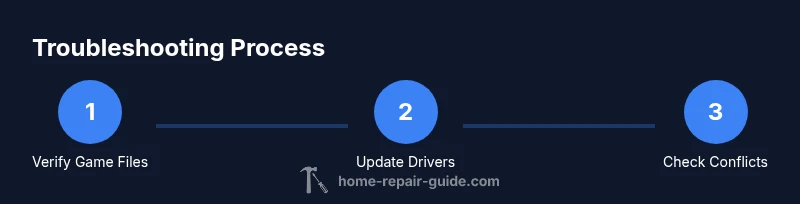
In this guide, we deconstruct the troubleshooting process into safe, practical steps. The guidance prioritizes legitimate fixes that preserve your account integrity and avoid terms-of-service violations. By following a clear path—check files, verify system health, adjust software conflicts, and then escalate if needed—you increase your odds of a stable, cheat-free gaming experience. The Home Repair Guide team emphasizes patient, documented debugging over rapid, risky hacks.
Note: If you rely on third-party software for performance or telemetry, document integration points before changing configurations. This helps you revert changes if they don’t resolve the issue. Also ensure your PC complies with Fortnite’s minimum requirements and that you’re not running incompatible background processes that could trigger anti-cheat alarms.
Tools & Materials
- Fortnite game installed via Epic Games Launcher(Ensure the launcher is up to date and signed in with a valid account)
- Stable internet connection(Wired connection recommended for consistent verification)
- Administrative rights on the PC(Needed to run verifications and modify system settings)
- Updated graphics drivers(NVIDIA/AMD/Intel drivers updated to latest stable version)
- Active antivirus/firewall with exception rules(Know how to add Fortnite/Epic Games Launcher to allowlist)
- Epic Games Launcher(Used to verify integrity and repair installations)
- Screenshots or error logs(Helpful when contacting support)
Steps
Estimated time: 45-60 minutes
- 1
Verify Fortnite game files
Open the Epic Games Launcher, navigate to Library, click the three dots under Fortnite, and choose Verify. This checks integrity and replaces any corrupted files. Expect a short wait as files are checked and re-downloaded if needed.
Tip: If verification finds corrupted files, let the launcher complete the repair before launching the game again. - 2
Update OS and graphics drivers
Install the latest Windows updates and update your GPU drivers from the manufacturer’s site or through Windows Update. Updated drivers reduce compatibility issues with anti-cheat services and improve stability.
Tip: Restart after updates to ensure all components load correctly. - 3
Run Fortnite as administrator
Right-click the Fortnite launcher or shortcut and select Run as administrator. Admin privileges can prevent access problems that block anti-cheat modules from loading.
Tip: If you’re on a shared PC, ensure UAC prompts are allowed for Epic Games Launcher. - 4
Disable conflicting overlays and VPNs
Temporarily disable overlays (Discord, Steam, MSI Afterburner) and disconnect VPNs or proxies while testing. These can interfere with anti-cheat communications.
Tip: Re-enable overlays after testing if you still have issues; only disable them one at a time to identify culprits. - 5
Check antivirus/firewall exceptions
Add Fortnite and Epic Games Launcher to allowlists and temporarily disable real-time scanning if needed to test. Ensure the anti-cheat services are not being blocked.
Tip: Capture a screenshot of any blocked activity messages for reference when you contact support. - 6
Test with a clean boot and minimal background apps
Restart your PC with only essential services running (clean boot) to rule out software conflicts. If Fortnite runs without issues, re-enable services one by one to identify the offender.
Tip: Document which service caused the issue to inform support if needed. - 7
Reinstall Fortnite or repair installation
If issues persist, reinstall Fortnite or perform a full repair from the Epic Games Launcher. This ensures all anti-cheat components are correctly installed.
Tip: Backup settings or keybinds if you customize them, to restore after reinstall.
FAQ
What causes Fortnite anti-cheat issues?
Most issues stem from software conflicts, outdated drivers, or corrupted game files rather than the game code itself. Identifying the exact trigger helps you apply a precise fix without risking account penalties.
Most Fortnite anti-cheat issues come from software conflicts or outdated files. Identify the trigger and apply the correct fix without risking your account.
Can I disable anti-cheat to fix problems?
Disabling anti-cheat is not recommended and often violates terms of service. Use legitimate troubleshooting steps and consult official support if needed.
Disabling anti-cheat is not advised and can violate terms. Stick to official troubleshooting steps and seek help if needed.
How do I verify Fortnite game files?
Open the Epic Games Launcher, go to Library, click Fortnite, choose Verify. The launcher will scan and repair corrupted files automatically.
In the Epic Games Launcher, select Fortnite and pick Verify to scan and repair files.
Do VPNs interfere with anti-cheat?
Yes. VPNs can cause routing issues that trigger anti-cheat alarms. Disable VPNs during troubleshooting and test connectivity.
VPNs can trigger anti-cheat alarms. Disable them while testing.
What should I do if issues persist after all steps?
Collect error codes, logs, and a detailed description of your setup; contact Epic Games Support for official troubleshooting and possible escalation.
If it still fails, gather logs and contact Epic Games Support for official help.
Is a clean boot recommended for testing?
Yes. A clean boot isolates background apps. If Fortnite runs fine, reintroduce services one by one to identify the culprit.
A clean boot helps isolate issues; re-enable services one by one to find the culprit.
Watch Video
Key Takeaways
- Verify integrity of Fortnite files first
- Keep OS and drivers up to date
- Limit software conflicts by testing one change at a time
- Use official support when problems persist
- Document error codes and steps taken for faster help