Repair Epson Printer: A Practical Step-by-Step Guide
Learn to diagnose and repair common Epson printer issues with a safe, practical step-by-step guide for homeowners. Covers jams, misfeeds, printhead cleaning, and firmware checks to prevent future failures.


By diagnosing jams, sensor errors, and print-head issues, you can safely repair many Epson printer problems at home. This guide walks you through common culprits, safe disassembly, cleaning, part replacement, and reassembly, with emphasis on unplugging the device and testing after each step. Gather basic tools, follow manufacturer warnings, and proceed only if you’re comfortable with hands-on maintenance.
Common Epson printer issues and symptoms
Epson printers are reliable, but they can encounter jams, misfeeds, faded prints, stripes, ghosting, and error codes. In many cases the root cause is a simple jam, a clogged printhead, or low-quality ink. Before diving into parts replacement, note the exact error message or blinking pattern. This helps tailor the repair and can save time when you consult Epson support or community forums. In this section we outline typical symptoms and practical ways to confirm the underlying problem, including quick checks like paper path inspection, cartridge seating, and printhead cleanliness. When diagnosing, work methodically: start with physical obstructions, then examine consumables, and finally probe firmware or settings if the hardware appears sound.
Key signs to watch:
- Repeated paper jams at the same location
- Poor print quality: streaks, missing lines, or faded color
- Error codes such as 0x10 or 0x97 (refer to the user guide)
- Printer not responding to print jobs or showing offline status
Tip: Keep a log of symptoms with time stamps; it helps spot recurring patterns and guides maintenance planning.
Safety and preparation before repair
Working on an Epson printer requires patience and proper safety practices. Always unplug the device and disconnect all cables before opening covers. If you plan to use compressed air, keep the can upright and use short bursts at a safe distance to avoid moisture or debris entering sensitive electronics. Wear safety glasses to protect eyes from ink splashes when handling cartridges. Use an anti-static mat or wrist strap when working near the control board to minimize static discharge. Finally, consult the user manual for model-specific cautions; older units may have different access points and disclaimers. Prepare a clean, well-lit workspace with a tray to store screws and small parts. Mark panels and screws with labels to preserve orientation during reassembly.
Why preparation matters:
- Reduces the risk of damaging internal components
- Makes disassembly and reassembly faster
- Improves the odds of a successful test run after maintenance
Essential tools and cleaning methods
Having the right tools makes DIY maintenance safer and more effective. A small Phillips screwdriver (size #1 or #2) and a flathead can help remove panels without stripping screws. Keep lint-free microfiber cloths for delicate surfaces and isopropyl alcohol 70% or higher for cleaning contacts and ink residue. A can of compressed air can be used to dislodge dust from the interior, but use short bursts and protect the printhead and electronics from moisture. An anti-static wrist strap reduces the chance of static harm to the printer’s circuit board. If you have model-specific parts like a printhead cleaning kit, follow the supplier instructions. Storage containers or magnet trays help keep tiny screws organized.
Step-by-step repair workflow
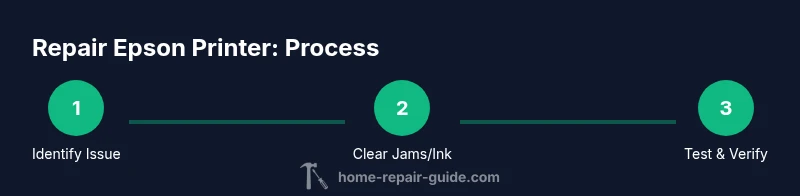
This section provides a practical workflow you can follow when attempting a DIY repair. It emphasizes safety, traceability, and testing after each action to confirm success. Remember, not every issue requires all actions, and some models have unique layouts. Start with non-invasive steps and progress to more involved ones only if the issue persists. Document every step so you can reverse any change if needed. Always handle ink cartridges and printheads gently to avoid damaging seals and circuits.
-
Identify issue and power down: Before touching any components, power off the device and unplug it. Remove any external cables and move the printer to a clean workstation. This prevents electrical shock and protects you from accidental activations during disassembly.
-
Access jam area and remove jam: Open access panels to locate jammed paper. Gently remove the paper with steady, even pressure to avoid tearing and leaving fragments inside the path. Inspect the rollers for glaze or debris and prepare to clean if necessary.
-
Clean transport path and rollers: Use a lint-free cloth lightly moistened with isopropyl alcohol to wipe rollers and sensors. Avoid soaking any components; moisture can damage electronics. Rotate rollers manually if possible to ensure they turn freely without resistance.
-
Check cartridges and printhead assembly: Reseat cartridges firmly and inspect the printhead for ink buildup. If applicable, run a printhead cleaning cycle from the printer menu to dislodge dried ink. Handle cartridges with care to avoid leaks and avoid touching electrical contacts.
-
Reassemble and perform initial test print: Restore covers and panels to their original positions, reconnect cables, and power on the device. Run a basic print test and alignment to verify alignment and spacing. If the print quality is inconsistent, recheck connections and re-run cleaning cycles.
-
Update firmware and run diagnostics: If issues persist, check for firmware updates from Epson’s official support site and install them following on-screen prompts. After updating, run any built-in diagnostics or a nozzle check to confirm the fix. If problems remain, consider professional service rather than continuing with risky DIY repairs.
Post-repair testing and routine maintenance
Once the repair is complete, perform a comprehensive test to ensure reliable operation going forward. Print a mixed page set: text, graphics, and photos to assess color balance and alignment. Check for residual streaks, misfeeds, or unusual noises. Create a short maintenance plan: schedule regular nozzle checks, periodic cleaning of rollers, and ink system evaluations. Keep spare parts on hand (such as rollers or seals) for your model to minimize downtime. Document the repair steps and any settings changes so future service is faster and more accurate.
Authority sources
Authority sources that support safe, reliable printer repair practices include:
- Epson official support: https://epson.com/support
- Consumer Reports printer maintenance guidance: https://www.consumerreports.org
- Federal trade and safety guidance: https://www.consumer.ftc.gov/articles/0257-choosing-printing-supplies
These sources provide model-specific instructions and safety considerations that complement practical DIY repair steps. Home Repair Guide references these sources to help homeowners perform careful, cost-effective maintenance while protecting device integrity.
Tools & Materials
- Phillips head screwdriver (size #1 or #2)(Essential for most panel screws)
- Flathead screwdriver(Helpful for pry points, without digging into plastic)
- Isopropyl alcohol 70% or higher(For cleaning contacts and ink residue)
- Lint-free microfiber cloth(To avoid fibers sticking to rollers and sensors)
- Compressed air canister(Small bursts; avoid direct contact with printhead)
- Anti-static wrist strap(Helpful for electronics safety)
- Replacement ink cartridge or printhead (if applicable)(Only if diagnosis indicates cartridge/printhead issue)
- Magnetic tray or labeled containers(Keep screws organized and prevent misplacement)
Steps
Estimated time: 60-90 minutes
- 1
Power down and unplug
Ensure the printer is turned off, unplugged from power, and disconnected from USB or network connections. This eliminates the risk of electric shock and prevents unexpected movements of internal components.
Tip: Place the printer on a stable surface and keep loose cords out of the way. - 2
Open access panels and locate jams
Gently lift or unlock panels to access the paper path. Look for torn paper, small fragments, or foreign objects that can cause misfeeds. Remove obstructions with steady force, avoiding quick jerks that could tear paper further.
Tip: If paper resists, stop and re-examine the path; forcing can damage rollers. - 3
Clean transport rollers and sensors
Wipe the rollers and visible sensors with a lint-free cloth dampened with isopropyl alcohol. Rotate rollers by hand if possible to ensure smooth motion. Let all cleaned parts dry completely before reassembly.
Tip: Do not use excessive liquid; moisture can short electronics. - 4
Check cartridges and printhead assembly
Re-seat ink cartridges firmly and inspect the printhead for clogs or dried ink. If the printer supports a nozzle check or cleaning cycle, run it once or twice, following the on-screen prompts. Avoid touching electrical contacts or the nozzles directly.
Tip: Document cartridge positions before removal to restore exact orientation. - 5
Reassemble and run a test print
Put panels back in place, reconnect cables, power on, and run a basic print test. Observe alignment and color balance. If issues persist, re-check connections and re-run cleaning cycles.
Tip: Keep a spare sheet for quick test prints to avoid wasting media. - 6
Firmware check and diagnostics
Visit the official Epson support page to see if firmware updates are available for your model. Install updates and run built-in diagnostics. If problems persist after an update, consider professional service.
Tip: Back up any important settings before firmware updates; updates can reset preferences.
FAQ
Can I repair an Epson printer myself?
Yes, for common issues like jams, misfeeds, and basic printhead cleaning. More complex failures or stubborn ink problems may require professional service. Always follow safety precautions and consult the user manual for model-specific steps.
Yes, you can DIY common jams or printhead cleaning, but for complex problems, consider professional help.
What should I do before opening the printer?
Unplug the printer and disconnect all cables. Move to a clean work area, and if you use compressed air, follow safety guidelines. Keep screws organized and review the manual for any model-specific cautions.
First unplug, disconnect cables, and prepare a clean workspace before you start.
How do I reset an Epson printer?
Most models offer reset options through the maintenance menu or a factory reset sequence in the user guide. If available, follow the on-screen prompts or the official support page for the exact model procedure.
Use the maintenance menu to access reset options, following your model’s instructions.
Is a DIY repair cost-effective compared to replacement?
DIY repairs can save money for minor issues, especially if you already own tools. For major failures or aging units, consider part costs and the printer’s remaining value to decide whether replacement is more economical.
DIY can save money on minor fixes; for major issues, weigh costs against replacement.
What are the most common recurring issues?
Jams, misfeeds, and print quality problems (stripes, ghosting, fading) are frequent. They’re often caused by clogged printheads, dirty rollers, or low-quality ink.
Jams and print quality problems are common, often due to clogged heads or dirty rollers.
Watch Video
Key Takeaways
- Diagnose before disassembly to avoid unnecessary parts replacement
- Unplug and test after each repair step
- Use the right tools and gentle cleaning methods
- Consult official support for firmware and model-specific guidance