How to Clean the Epson Maintenance Box: A Practical Guide
Learn how to safely handle Epson maintenance box cleaning, including warning signs, when to replace, and best-practice steps for homeowners and DIYers. This guide from Home Repair Guide helps you avoid leaks and printer downtime.


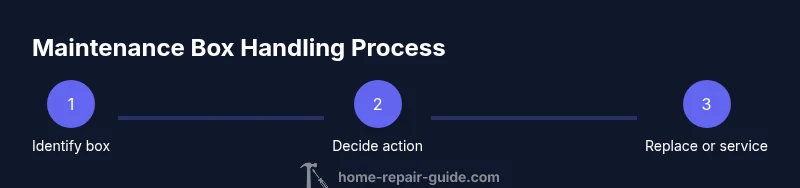
If you're wondering how to clean maintenance box epson, the safe answer is: do not attempt a DIY cleaning. The maintenance box (waste ink pad) is a consumable that Epson typically replaces or services. To prevent overflow, align with the service center or follow official reset procedures only after replacement. This protects your printer and limits mess.
What is the Epson maintenance box and why you might need to address it
The maintenance box (also called the waste ink pad assembly) is a component inside many Epson printers that collects ink during cleaning cycles and printhead servicing. Over time, it can become saturated, triggering error messages or printer shutdowns. This is a normal wear item, and Epson typically requires replacement or professional servicing when the pad reaches capacity. For those asking how to clean maintenance box epson, note that DIY cleaning is not generally recommended because it can overflow and cause ink leakage. The safest approach is to replace the assembly or have a certified technician service the unit. Homeowners and DIY enthusiasts can minimize issues by arranging service before the printer reaches critical errors and by following manufacturer guidance. This article from Home Repair Guide emphasizes safe handling and proper disposal of waste ink as part of routine printer maintenance.
Assess whether cleaning is appropriate for your model
Not all Epson models provide user-accessible maintenance boxes. Before you start, consult the printer's manual or official support page to identify the exact component location and recommended handling. If your model states "maintenance box full" or similar warnings, it's almost certainly time to replace or service rather than attempt a self-clean. Attempting to clean could dislodge ink and undermine the pad's ability to absorb, leading to leaks or pressurized ink spills. The Home Repair Guide team advises verifying warranty terms and model-specific instructions. If your model does not permit safe access or if you notice glaring leaks, stop and contact a service provider. For some users, performing a basic external wipe around exposed areas (without touching the pad) can reduce surface staining, but this is not a fix and should be done with gloves and protective paper towels.
Safe, manufacturer-supported options: replacement vs service
From a safety and reliability perspective, replacement of the waste ink pad assembly is the standard route when the pad is saturated. Service centers can install a new WIA and perform any required reset steps to bring the printer back to normal operation. Avoid unapproved third-party parts that may not fit correctly or seal properly, as leaks can void warranties or damage internal electronics. If the device is still under warranty, contact Epson support to confirm coverage and recommended course of action. The alternative is a full service, where trained technicians disassemble, clean or replace the relevant components, and reset counters per the model's service manual. Either path aims to restore print quality and prevent ink overflow. The Home Repair Guide recommends documenting model numbers, serials, and error messages before contacting support.
Preparing for service or replacement: planning and considerations
Collect your printer model, serial number, and warranty status. Take clear photos of any visible ink residue and note any error codes shown on the display. If you proceed with replacement, use authentic or manufacturer-approved parts and schedule downtime to avoid interrupting essential printing tasks. In some cases, you may need to send the unit to an authorized service center; discuss shipping, turnaround time, and guarantees. For DIY-skeptical readers, using a service plan with a local technician can simplify the process and reduce risk. Always follow proper disposal guidelines for used pads and ink, and never dump waste into ordinary trash.
DIY considerations: what you can safely do without voiding warranty
Safety first: wear nitrile gloves, protect surfaces with disposable towels, and work in a well-ventilated area. Do not attempt to disassemble the pad assembly or reset counters unless you have model-specific instructions from the official manual or a certified technician. If you do engage in any external cleaning of exposed areas, keep liquids away from electronics and avoid contact with the ink pads. Document everything and stop if you see loose components or signs of leakage. This is where Home Repair Guide's guidance aligns with common-sense care: DIY steps are limited to safe external cleaning and early warnings rather than breaching the printer's internal waste ink system.
Common symptoms that indicate the maintenance box is full
Print errors such as 'waste ink overflow' or 'maintenance box full' indicate saturation. You may see blotching, smeared prints, or a printer that halts before a job. If you notice strong odors of ink or visible pooling near internal seams, stop and arrange service. These symptoms can help you decide whether to pursue replacement or professional servicing rather than pursuing a risky DIY clean.
Authority sources
- Epson official support: https://www.epson.com/support
- Consumer Reports: https://www.consumerreports.org
- OSHA product safety guidelines: https://www.osha.gov
Tools & Materials
- Nitrile gloves(Protect hands from ink; ensure a snug fit)
- Lint-free paper towels or disposable absorbent pads(For any surface cleanup)
- Seal-able disposal bag(For disposing used towels and pads)
- Isopropyl alcohol 70%(Optional for light surface cleaning away from electronics)
- Flashlight or portable lamp(Inspect tight spaces and panels)
Steps
Estimated time: 1-3 hours
- 1
Power off and unplug the printer
Shut down the printer, then unplug power and any data cables to prevent accidental startup or electrical shock while inspecting internals.
Tip: Always unplug before touching internal components. - 2
Check warranty and model-specific guidance
Refer to the official manual or Epson support page to locate the maintenance box and confirm approved handling.
Tip: Model differences mean different access points; follow model-specific steps. - 3
Decide on replacement vs service
Based on the fullness of the device and warranty status, choose to replace the pad assembly or arrange authorized service.
Tip: If in doubt, obtain a written quote before proceeding. - 4
Schedule and arrange the service or parts
If replacing, ensure authentic parts are used and schedule downtime. If using service, confirm turnaround and return policy.
Tip: Ask about any required resets after replacement. - 5
Post-service test and reset
After replacement, run a nozzle check or printer test and follow official reset steps if applicable.
Tip: Test with a simple print first to verify even ink distribution. - 6
Proper disposal of waste components
Dispose of old pads and contaminated towels per local regulations; use a sealable bag and label as waste.
Tip: Keep used materials contained to avoid staining or spills.
FAQ
What is the maintenance box in an Epson printer?
The maintenance box, or waste ink pad assembly, collects ink during servicing and cleaning cycles. When full, printers commonly prompt a replacement or professional service.
The maintenance box is the waste ink pad assembly that needs service or replacement when full.
Can I clean the maintenance box myself?
DIY cleaning is generally not recommended because improper cleanup can cause leaks and may void warranties. Professional servicing is the safer route.
No, it's best to avoid cleaning it yourself and seek professional service.
How do I know if replacement is necessary?
If you see ‘maintenance box full’ errors, persistent ink leaks, or print quality degradation after cleaning cycles, replacement or service is usually required.
If you get full capacity warnings or leaks, plan for replacement or service.
Will resetting the counter fix the issue?
Resetting should only follow a legitimate replacement or service according to official instructions; improper resets can hide a real issue and trigger further errors.
Resetting without proper replacement can lead to recurring errors.
How long does service typically take?
Turnaround varies by model and location; ask the provider for an estimated window and whether the pad comes with a warranty.
Turnaround time depends on model and the service center.
What should I do if ink leaks during handling?
If ink leaks, stop immediately, avoid skin contact, contain the area with towels, and seek professional service. Do not attempt risky internal work.
If ink leaks, stop and contact a professional.
Watch Video
Key Takeaways
- Replace, don’t clean, a saturated maintenance box
- Check model-specific guidance before touching internals
- Use authorized service for WIA replacement
- Document error messages and plan downtime for service