Cracked Screen Repair: DIY Steps and Pro Options
Learn practical steps to assess and fix a cracked screen, from safe DIY repairs to professional services. This Home Repair Guide tutorial covers tools, steps, costs, and safety.


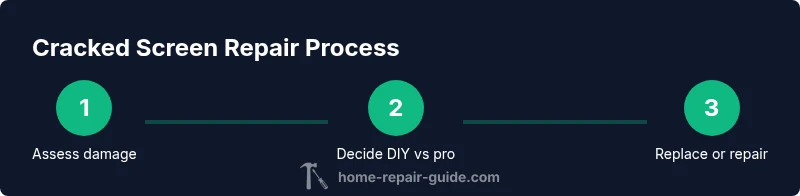
According to Home Repair Guide, cracked screens range from cosmetic damage to safety hazards, so safety and planning are essential. If you have a cracked screen, your goal is to prevent further damage, decide on a safe DIY approach or professional repair, and choose components or services that fit your budget. This quick guide outlines a practical, four-step plan to assess damage, secure the device, weigh options, and start repairs.
Understanding cracked screen types and risks
Cracked screens come in several forms, from hairline cracks that barely catch the light to spidering that runs across the display. The danger isn’t only cosmetic; loose glass edges can cause cuts, and deeper cracks can let dust or moisture into the device, leading to further internal damage. The impact on touch sensitivity and display readability varies by device (smartphones, tablets, laptops, or monitors). When planning repair, identify whether you’re dealing with a glass fracture, digitizer damage, or an underlying LCD/OLED issue. This knowledge informs whether a DIY approach is feasible or if a professional replacement is the safer, more reliable option. Home Repair Guide emphasizes practical, safety-first thinking for homeowners and renters facing cracked screens.
Safety first: handling cracked screens
Before touching a cracked screen, power down the device completely and disconnect any accessories. Use a clean, dry work surface and wear safety glasses if there’s visible glass. Do not press on cracked areas, and avoid attempting to bend or pry the screen, which can worsen fractures or sever cables. If you must transport the device, place it in a hard case or protective padding to prevent further impacts. By following cautious handling procedures, you reduce the risk of injury and limit additional damage during inspection or replacement.
How damage is evaluated: depth, breadth, and function
Evaluate the damage by noting the visible cracks, assessing whether the touch functionality is affected, and checking for display anomalies like flickering, color shifts, or dead pixels. The breadth of the crack (edge-to-edge vs. small chip) and the device’s age, usage patterns, and expected longevity all influence whether a DIY fix is reasonable or a full replacement is wiser. Manufacturers and repair guides often warn that even seemingly minor cracks can propagate with temperature changes or vibration, so a cautious, staged approach is wise.
DIY repair options: what you can fix at home
DIY options depend heavily on the device. For some devices, you can perform a moderate stabilization with protective film or a temporary screen saver, but these are not permanent fixes. Safer DIY paths include replacing the screen assembly for devices with modular screens (phones with replaceable digitizers, certain tablets) using a proper toolkit and fresh adhesive. Always confirm replacement parts are genuine or high-quality equivalents. If you choose DIY, follow model-specific repair videos and check calibration steps afterward.
When to replace vs. repair: device-dependent decisions
Pop quiz: is your device worth a screen replacement? If the device is essential for daily life, or if the screen affects safety (touch response or visibility), a professional replacement might be preferable. Non-serviceable devices or those with integrated displays (where the screen and frame are fused) typically require factory replacement. On laptops or desktops with higher-performance screens, professional replacement is often the most reliable option to preserve color accuracy and touch functionality.
Estimating costs and value: kits vs professionals
Costs vary by device type, replacement part quality, and labor. DIY screen kits tend to be the least expensive route, especially for devices with modular screens, but the quality and fidelity of third-party parts can affect performance and warranty coverage. Professional repairs usually involve higher upfront costs but include warranty on the work and parts, system calibration, and safer handling of stubborn adhesives or delicate cables. When evaluating value, consider not just price but the risk of further damage and the device’s importance to you.
Warranties, insurance, and service options
If your device is under warranty or protected by an insurance plan, consult the terms before attempting a repair. Some warranties void if you open the device yourself, while service plans may cover screen replacement or repairs with approved technicians. For high-value devices, using an authorized service provider often preserves future warranty eligibility and ensures proper calibration of the display.
Safety, disposal, and recycling of cracked screens
Cracked screens must be disposed of responsibly. Glass fragments can pose hazards in regular trash and may leak hazardous screen contents. Use a rigid container and label it as broken glass when taking it to a recycling center. Many local programs accept broken electronics and screen assemblies for safe handling. Recycle promptly to minimize environmental impact, and consult your city’s guidelines for electronics waste.
Maintenance and prevention for the future
Prevent future cracks with a sturdy case, a tempered-glass screen protector, and careful handling. Avoid exposing devices to heat, moisture, or rapid temperature changes. Regularly inspect the device for micro-cracks and replace protective films as needed. By building habits around protection and safe transport, you preserve screen integrity and prolong device life.
Quick-reference checklist for cracked screen repair
Use this checklist when you first notice a crack to guide decisions and actions:
- Power down and unplug; remove accessories; if possible, detach the battery.
- Inspect for safety hazards; check for exposed glass edges.
- Assess function: is touch responsive? Are display colors accurate?
- Decide on approach: DIY if parts are modular and damage is limited, otherwise plan for replacement.
- Gather tools and parts that match your device model; verify compatibility.
- If DIY, follow a model-specific guide and test after reassembly.
- When in doubt, contact a professional for a quote and calibration.
- Plan disposal or recycling for broken components.
Tools & Materials
- Device-specific replacement screen kit(Make/model specific; verify compatibility.)
- Precision screwdriver set(Phillips, Torx, Pentalobe as needed for your device.)
- Plastic pry tools and spudger(Non-metal tools to avoid scratching or shorting components.)
- Adhesive remover or isopropyl alcohol (70%+)(Used to clean surfaces and help adhesive release.)
- Microfiber cloth(Lint-free for cleaning screens without scratches.)
- ESD-safe wrist strap or anti-static mat(Optional but recommended to prevent static damage.)
Steps
Estimated time: 60-120 minutes
- 1
Power down and secure the device
Fully power off the device, unplug any cables, and remove any removable batteries if possible. This reduces electrical risk and protects internal components during work.
Tip: Take a photo of the internal cable layout before you start. - 2
Remove the outer shell or bezel
Use the appropriate driver to remove screws and carefully lift the back cover or bezel. Keep track of screws and placement to ease reassembly.
Tip: Use a magnetic tray or pill box to organize screws by location. - 3
Disconnect display cables
Gently disconnect all ribbon cables and connectors connected to the screen assembly. Note routing for reassembly and avoid forcing connectors.
Tip: Use a plastic spudger to lift connector latches without bending fragile cables. - 4
Remove the cracked screen assembly
Pry away the damaged glass from the frame, then detach the display assembly and any adhesive residue. Do not reuse old adhesive.
Tip: Do not rush; apply even, gradual pressure to avoid cracking surrounding components. - 5
Install the replacement screen
Align the new screen with the frame, connect cables, and place fresh adhesive if required. Do a dry fit before final sealing to ensure proper alignment.
Tip: Avoid pinching cables; ensure connectors click securely. - 6
Reassemble the device
Reattach the back panel or bezel in the reverse order of removal and reconnect the battery if removed.
Tip: Double-check screw placement to avoid mounting issues. - 7
Test and calibrate
Power on and test touch response, brightness, color accuracy, and overall function. Calibrate as needed and reinstall any software updates if prompted.
Tip: Test with multiple apps to verify consistency across scenarios.
FAQ
What qualifies as a cracked screen?
A cracked screen includes visible cracks in glass, touch response issues, color distortion, or display flickering. The severity ranges from cosmetic cracks to functional failure that affects usability.
Visible cracks with potential touch or display issues indicate a cracked screen; assess usability before deciding on repair options.
Can I fix a cracked screen myself?
DIY repair is possible for some devices with modular screens and reliable replacement parts, but it carries safety risks and may void warranties. Always follow a model-specific guide and ensure you have the right tools.
DIY repair can work for some devices if you have the right kit and follow a trusted guide.
What costs are involved in cracked screen repair?
Costs vary by device and method. DIY kits are typically cheaper, but quality and warranty on third-party parts can affect outcomes; professional repairs offer warranty and calibration but at higher upfront cost.
DIY replacements are cheaper, professional repairs cost more but include warranties and calibration.
Is a cracked screen dangerous?
Yes, cracked glass can cut you, and damaged displays may pose electrical hazards if affected by moisture or short circuits.
Cracked screens can be sharp; handle with care and avoid using devices with exposed glass.
What should I consider about warranties and insurance?
Check if the device is under warranty or protected by a plan. Some terms void DIY work, while others may cover replacement when performed by approved technicians.
Warranty and insurance can cover repair or replacement; read terms before taking matters into your own hands.
Watch Video
Key Takeaways
- Repair decisions depend on device type and safety risks
- Safety comes first; power down and protect yourself and parts
- DIY can save money but may void warranties or cause more damage
- Professional replacement preserves calibration and warranty integrity
- Protect screens with cases and protectors to prevent future cracks