Screen Repair for Cell Phone: A Practical DIY Guide
Learn how to diagnose damage, choose the right repair path, and safely replace a cracked smartphone screen with a step-by-step approach, tool lists, and safety tips from Home Repair Guide.


By the end you’ll know how to diagnose screen damage, decide between DIY or professional repair, and safely swap a cracked phone screen. This guide covers tool lists, step-by-step actions, safety tips, and testing procedures to help you complete a screen repair for a cell phone with confidence and care.
Why screen repair for cell phone matters
Screen damage is a common frustration for smartphone owners, and screen repair for cell phone is a practical skill that can save money and extend device life when done safely. According to Home Repair Guide, starting with a clear plan reduces time and risk, especially for devices with fragile connectors. In this section we explore why screens crack, what recovery means for usability, resale value, and daily life. You’ll learn how to decide between a DIY repair and professional service based on the device model, tools at hand, and your comfort level with electronics. Understanding the trade-offs helps you choose the best path for your situation, whether you’re dealing with a shattered LCD, a touchscreen that no longer responds, or a display with color distortion. Recognizing symptoms early also helps prevent further damage and sets expectations for outcome and warranty considerations.
Assessing damage and choosing a repair path
Damage patterns for phone screens generally fall into a few reliable categories: glass cracks with intact digitizer, digitizer failure with touch loss, LCD failure with image issues, or a combined display fault. Home Repair Guide analysis shows that most cases benefit from a careful assessment of which components are actually compromised. Start by inspecting the exterior glass and the responsiveness of touch; then check for dead pixels, color tints, or backlight irregularities. If the display works but touch is unreliable, you may be facing digitizer issues; if images are missing or distorted, the LCD assembly is suspect. This assessment informs whether a DIY replacement is feasible or if a professional repair is the safer long-term option. Consider tool access, model specifics, and your comfort level with electronics before deciding.
Understanding OEM vs aftermarket screens and compatibility
When you’re considering screen repair for a cell phone, compatibility is critical. Original equipment manufacturer (OEM) screens guarantee color accuracy and fit, but come at a premium price. Aftermarket or refurbished screens can save money but may vary in color accuracy, brightness, and connector tolerances. The decision hinges on device value, warranty status, and how long you need the phone. Verify model numbers, reference the build year, and ensure the replacement screen includes all required components (sensor, frame, or back housing if needed). Some devices use unique connector standards or shield plates; buying a non-matching screen often leads to unusable parts. If the phone is under warranty or has known reliability issues, weigh the risk of self-repair against authorized service.
Safety first: risks and precautions
Phone screen repair presents several safety considerations. Li-ion batteries can suffer thermal runaway if punctured, so never ignore battery safety. Use non-conductive tools and worn-eye protection to avoid tiny shards or static discharge. Work in a clean, organized space on a static-free surface, and keep small screws secured to prevent loss. Avoid applying heat or force to areas you cannot clearly identify, and never force a connector. If you sense resistance or hear snaps, stop and reassess; rushing can cause more damage or void warranties. By treating components with care and pausing when unsure, you reduce the risk of personal injury and device damage.
Workspace and planning for screen repair
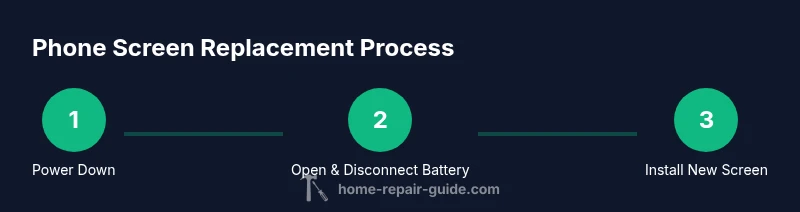
A well-prepared workspace dramatically reduces risk and speeds up the repair. Clear a flat, well-lit surface with a mat or tray to hold screws and tiny parts. Gather all essential tools and the replacement screen before you begin; test-fit components to verify alignment. Create a simple workflow: power down, document connector locations with photos, disconnect power sources, remove the screen, install the replacement, and reassemble. Keep a parts tray labeled by location to prevent mix-ups. A calm environment helps you follow a precise sequence and minimize mistakes that can lead to short circuits or broken connectors.
What to expect from a DIY screen replacement
DIY screen replacement is a meticulous process that rewards patience and accuracy. Expect to work in a stepwise fashion, often with adhesives that require curing time. Even experienced technicians may need to pause to verify connector seating and display calibration. If the device is older, you might encounter degraded cables or stubborn adhesive. Budget green flags include replacing worn sealants and cleaning surfaces thoroughly to avoid dust traps under the new screen. If you value device longevity and cost control, a careful DIY approach can be very effective, though some models benefit from professional handling due to complex frame assemblies or fragile flex cables.
How screens are mounted and tested
Modern phones rely on precise mounting techniques to seal screens against dust and moisture. After attaching the replacement screen, you’ll carefully align it with the frame and realign any flex cables. A gentle power test helps confirm touch responsiveness and display integrity before final assembly. Use a clean, lint-free cloth to wipe the lens surface and check for obvious gaps around the perimeter. If you notice misalignment or gaps, re-seat the screen and verify connector seating. Calibration software may be required on some models to restore optimal touch sensitivity.
Common mistakes and how to avoid them
Common errors include misplacing screws, puncturing the battery, and reconnecting cables in the wrong order. Take photos during disassembly to guide reassembly and keep track of which screws belong where. Avoid touching connector pins with metal tools; use spudgers and plastic picks. Work slowly to prevent tearing flex cables or bending connectors. Don’t rush adhesive curing; wait the recommended time before powering on the device. Double-check that the battery connector is securely seated before reassembly to prevent a no-power scenario.
When to seek professional help
If you’re unsure about any step, or if the device is under warranty with manufacturer support, professional repair services may be the safer option. Complex models or phones with glued-in screens and embedded modules are more prone to damage if DIY attempts go wrong. A professional repair can protect warranty status and preserve device integrity, potentially saving you time and money in the long run. Consider your comfort level, the device’s value, and whether the risk of DIY is acceptable before deciding.
Maintenance after repair and prevention
After replacing a screen, establish a maintenance routine to protect the investment. Use a durable case and screen protector to reduce future impacts, avoid exposing the phone to extreme temperatures, and clean surfaces with gentle, lint-free wipes. Regularly inspect the frame and screws to ensure nothing has loosened during reassembly. If you notice touch drift, ghost touches, or color shifts later, revisit the calibration or consult a professional. Routine checks and careful handling extend the life of the repaired device.
Tools & Materials
- Precision screwdriver set (Phillips/Hex/Torx)(Include bits compatible with your model (e.g., Phillips #00, Torx T3/T4).)
- Spudger tool (plastic or nylon)(Used to disconnect connectors without damage.)
- Tweezers(For handling small, slippery components.)
- Suction cup or screen separator(Helps lift the screen without prying the display housing.)
- Opening picks / plastic pry tools(Use to separate adhesive without gouging edges.)
- Isopropyl alcohol (70% or higher)(For cleaning surfaces and adhesive residue.)
- Replacement screen assembly (OEM or verified aftermarket)(Verify model compatibility and connector type before purchase.)
- Adhesive tape and/or UV-curing adhesive(Used to reseal and secure the new screen in place.)
- Lint-free microfiber cloth(For dust-free cleaning of glass surfaces.)
- Anti-static wrist strap(Optional but helpful to reduce static risk on sensitive parts.)
Steps
Estimated time: 60-120 minutes
- 1
Power down and remove SIM tray
Shut down the phone completely and eject the SIM card tray to prevent short circuits while you work. This initial step reduces the chance of accidental contact with live circuitry.
Tip: Take a photo of the bottom connectors before removing any parts. - 2
Open the device housing
Carefully loosen the screws around the chassis and use plastic picks to lift the back cover or screen assembly. Avoid bending the frame and keep track of every screw type.
Tip: Work on a magnetic mat or a labeled tray to prevent lost screws. - 3
Disconnect the battery connector
Locate the battery cable and detach it to cut power to the mainboard. Use a plastic tool and avoid applying pressure to the battery itself.
Tip: If the battery is glued, do not force it; proceed with caution. - 4
Disconnect display connectors
Gently lift and unplug the display cables from their sockets. Note the routing and order of each connector to ensure correct reassembly.
Tip: Keep connectors aligned and avoid bending flex cables during removal. - 5
Remove the cracked screen from the frame
Use a suction cup and opening tools to lift the glass, then detach adhesive securing the screen to the frame. Do not pry aggressively.
Tip: Apply heat sparingly to soften adhesive—too much heat can damage components. - 6
Prepare the replacement screen and adhesive
Inspect the new screen for any defects and prepare the frame by cleaning surfaces. Fit the replacement into the frame without attaching it yet to confirm alignment.
Tip: Dry-fit first to avoid adhesive waste and misalignment. - 7
Attach the new screen and reconnect cables
Seal the new screen in place with adhesive, align connectors, and reseat all flex cables. Ensure the screen sits flush with the frame before mounting the battery.
Tip: Double-check connector seating with a magnifier if needed. - 8
Reassemble the device housing and battery
Reinstall the chassis screws in their original locations and reattach the battery connection. Replace covers and seals as they were originally configured.
Tip: Do not overtighten screws; snug is enough to avoid stripping threads. - 9
Power on and run a basic test
Power up the device and verify the display, touch response, brightness, and color consistency. Check for ghost touches and ensure the home button or fingerprint sensor functions if applicable.
Tip: Run a quick brightness and color balance test to catch flicker early. - 10
Final calibration and verification
Calibrate touch and display settings if the device requires software adjustments. Verify that all sensors, cameras, and speakers function correctly.
Tip: Keep the device powered off while calibrating sensitive settings as recommended by the model's manual.
FAQ
Is it safe to repair my phone screen myself?
DIY screen repair carries risks, including battery puncture and short circuits. If you have basic electronics experience and the device model is straightforward, you can proceed with caution. Otherwise, professional repair is the safer option.
DIY screen repair can be risky; proceed only if you’re comfortable handling electronics and batteries.
Do I need to replace only the glass or the entire LCD assembly?
Often the entire LCD/digitizer assembly must be replaced if touch or display is faulty. If the glass is cracked but the display responds, a glass-only repair may be possible on some models. Check model specs and testing results.
Usually you replace the whole assembly if touch or image is affected.
Will replacing the screen void my phone’s warranty?
Opening the device can void warranty in many cases. Check manufacturer policy and consider authorized service if the phone is still under warranty or if you’re uncertain about the repair.
Opening the device may void warranty; verify with the manufacturer or authorized service.
How long does a DIY screen replacement typically take?
Most DIY screen replacements take about an hour to two hours depending on your familiarity with the device and how carefully you work. Plan for slower progress if this is your first time.
Expect about 1 to 2 hours for a careful screen swap.
What safety precautions should I follow?
Power off completely, disconnect the battery, use non-conductive tools, and work on a static-free surface. Avoid touching connectors with metal tools and monitor for heat buildup during the process.
Always power down, disconnect the battery, and use non-conductive tools.
Should I calibrate the touch screen after replacement?
Many devices auto-calibrate after a screen replacement, but some models may require software calibration or a touchscreen test app to restore full accuracy. Verify with the model’s manual.
Your device may auto-calibrate; if not, follow software calibration steps.
Watch Video
Key Takeaways
- Assess damage to decide on DIY vs pro help
- Gather the right tools and a compatible replacement screen
- Power down, disconnect power sources, and handle connectors carefully
- Test the screen thoroughly before final sealing
- Consider warranty implications and model-specific risks