Phone Cracked Screen Repair: A Practical How-To Guide
Learn safe, practical steps for repairing a cracked phone screen, compare DIY vs. professional options, and estimate costs with Home Repair Guide.


This guide covers phone cracked screen repair, focusing on safety, decision-making, and practical steps. You’ll learn how to assess damage, choose between DIY replacement or professional service, gather the right tools, and follow a clear, step-by-step plan to minimize risk and preserve data. By the end you will know when to DIY, when to hire a pro, and how to avoid common mistakes.
Understanding the scope of damage
A cracked screen can range from cosmetic surface cracks to internal failures that affect touch sensitivity, color accuracy, or LCD visibility. Start by powering the device off and inspecting for obvious symptoms: unresponsive areas, dead pixels, display discoloration, or moisture near the screen. According to Home Repair Guide, a precise damage assessment helps decide whether a DIY screen replacement is feasible or if professional service is the safer path. If the LCD shows lines, flickering, or image loss, or if the touchscreen is inconsistent, plan for a full assembly replacement rather than a glass-only fix. For minor cracks with no degradation in function, a tempered-glass protector or clear film can buy time while you weigh longer-term options. Keep cables and connectors in view and check that the device still powers up after a cautious power cycle. Document serial numbers and back up data before any disassembly begins. This upfront check reduces the risk of wasted effort and data loss later.
DIY vs. professional repair options
Repair paths vary by model, tool availability, and risk tolerance. A DIY screen replacement can save money if you’re replacing a glass panel or digitizer and you’re comfortable with delicate connectors and carefully applying new adhesive. Professional repairs provide factory-quality parts, calibrated color and brightness, and a warranty on the replacement. Home Repair Guide analysis shows that many homeowners save on costs by handling glass-only repairs themselves, but replacements that involve the LCD/digitizer assembly tend to be more reliable when done by trained technicians. Consider warranty terms, device age, data security, and your own dexterity. If the phone is a critical lifeline for work or personal use, or if color calibration matters (photography, accessibility), a pro repair may offer the best long-term value. Always verify replacement parts for compatibility and the provider’s testing protocol before committing to service.
Safety and prep: gear you need
Preparation is essential for reducing risk during a screen repair. Work in a clean, dry area with good lighting and a non-static surface. Wear eye protection and keep a container for tiny screws. If the device contains a swollen battery, stop and seek professional help—battery punctures can cause dangerous fires. Back up data and ensure you have another device available for communications during the repair window. Remove all covers and cases, and power down completely. If the device design allows, disconnect the battery before removal of the display assembly. Label connectors as you detach them, and keep track of screws and hardware in labeled compartments. Finally, inspect the outer frame for sharp edges that might scratch the new screen and set up a workstation with a soft mat to prevent accidental drops.
Tools and materials you will need
Having the right tools makes a big difference in success and safety. A typical kit includes precision screwdrivers, plastic pry tools, a suction cup, tweezers, and a microfiber cloth for cleaning. You’ll also need replacement screen assembly or a glass/digitizer kit compatible with your model, adhesive strips or double-sided tape, and a heat source (professional heat or a hair dryer on low, used carefully) to soften adhesive. Don’t forget anti-static wrist strap, a small magnetic mat, and organizing trays for fasteners. Finally, keep model-specific repair guides on hand for connector layouts and torque values. With the right tools and careful handling, you reduce the chance of collateral damage during disassembly and reassembly.
Step-by-step overview
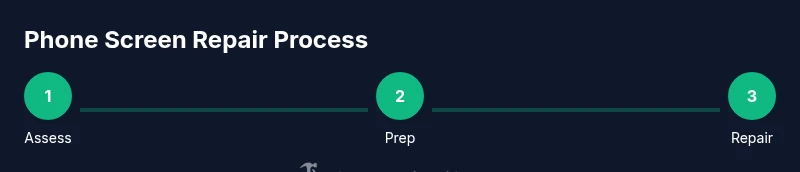
While this section outlines the core sequence, always refer to model-specific instructions that come with your replacement kit. The steps below provide a high-level framework to help you plan and prepare for the more detailed, device-specific actions you will perform in the full guide. Proper execution relies on steady hands, a clean workspace, and meticulous reassembly checks to ensure the new screen is properly seated and calibrated.
Assessing the glass vs. LCD and bezel
Not all cracks require LCD replacement. If the display shows no image distortion and the touchscreen responds consistently, you may be able to replace only the front glass or digitizer. However, if you notice dead pixels, color shift, brightness loss, or sporadic touch, you should plan for an LCD/digitizer assembly swap. Bezel integrity matters too—loose or bent bezels can compromise seal integrity and water resistance. A careful assessment should also consider adhesive types used by the manufacturer. If you’re unsure, err on the side of caution and factor a pro replacement into your plan. A cautious approach helps you decide whether to proceed with a DIY kit or to book a professional repair.
Costs, warranties, and choosing a repair path
Costs vary by device and repair path. DIY replacement parts typically cost between $20 and $120, depending on whether you replace just the glass or the entire digitizer assembly. Professional service often ranges from $100 to $300, with higher-end models or water-resistant devices costing more due to additional calibration and testing. Warranties can differ: DIY parts may have limited guarantees from the seller, while reputable shops offer warranty on labor and parts. When deciding, weigh the potential savings against the risk of improper installation, data loss, or voiding a remaining warranty. If your device is older or carries sentimental value, a DIY path might be worthwhile; for newer devices or devices with complex seals, a pro repair is often the safer choice. Based on Home Repair Guide research, a thorough evaluation of risks and benefits leads to the best long-term outcome.
Post-repair testing and safety checks
After reassembly, power the device and test core functions: touchscreen sensitivity, display brightness, color accuracy, and speaker/mic performance. Run brightness/contrast tests and verify color calibration with a white image to spot tint shifts. Check camera alignment and test fingerprint or face ID functionality if equipped. Conduct a brief drop test in a safe, padded environment to ensure the screen sits firmly and no panels flex under pressure. If water resistance was a concern, run a quick moisture test or rely on the device’s official diagnostic tools. Finally, apply a protective screen and case to reduce the risk of future damage and to maintain a secure grip.
Long-term maintenance and prevention
Prevention is the best repair. Use a high-quality screen protector and a rugged case that channels impact away from the display. Keep your device away from extreme temperatures and moisture, and avoid placing it in inconsistent pockets where it can flex. Regularly clean the screen and case, and perform software updates to ensure optimal performance. Schedule periodic checks for battery health, charging port integrity, and connector wear, especially after any repair. Consider a basic insurance plan or extended warranty if your device is valuable. With careful handling and proper protection, you can extend the life of your phone even after a cracked screen repair.
Tools & Materials
- Precision screwdriver set(Phillips and Pentalobe bits as needed by model)
- Plastic opening tools(Nylon pry tools to avoid scratching surfaces)
- Suction cup(Small size for lifting screen edges)
- Tweezers(Fine-point for tiny connectors)
- Replacement screen assembly or glass/digitizer kit(Model-specific part; verify compatibility)
- Adhesive strips or double-sided tape(For securing the new screen)
- Heat source (hair dryer or heat gun)(Used to soften adhesive; use with caution)
- Isopropyl alcohol 99%(For cleaning surfaces)
- microfiber cloth(Lint-free cleaning)
- Anti-static wrist strap(Reduce static discharge risk)
Steps
Estimated time: 60-120 minutes
- 1
Power down and back up data
Power off the phone completely and remove any external storage. Back up data to the cloud or computer to prevent loss during disassembly.
Tip: Ensure the device is truly powered off before touching the internals. - 2
Open the device housing
Remove back cover or display screws as required by your model, using the appropriate driver. Use plastic tools to release clips without bending the case.
Tip: Work slowly to avoid snapping brittle plastic frames. - 3
Disconnect the battery
If possible, disconnect the battery connector to minimize the risk of short circuits. In some models, the battery is glued in; skip if not safely accessible.
Tip: Never pry the battery directly; risk of puncture could cause a fire. - 4
Detach the screen assembly
Carefully detach screen connectors from the motherboard, using plastic picks to avoid pinching wires. Note the order and orientation of each connector.
Tip: Label connectors with masking tape for easy reassembly. - 5
Remove the old screen and adhesive
Gently lift the cracked screen from the frame while applying heat if necessary to soften adhesive. Remove all adhesive residues.
Tip: Work with steady hands to prevent cracks from spreading. - 6
Install the new screen
Align the new screen with the frame and gently secure connectors. Reapply adhesive or mounting tape as specified by the kit.
Tip: Check for even gaps and avoid pinching cables. - 7
Reassemble and test
Reconnect the battery, reattach the back cover, and power on. Run a test: touch response, brightness, color tint, and speaker/mic function.
Tip: Test in multiple lighting conditions to confirm display stability. - 8
Seal and protect
Reapply any water seals or gasket material if your model includes them. Apply a protective case and screen protector to reduce future risk.
Tip: Capture a final moisture/dust test if your model supports it.
FAQ
Can I replace the glass only if the LCD is fine?
If the LCD shows no damage, you may replace only the glass or digitizer. If the LCD is damaged, expect a full assembly replacement, which is more complex and may require calibration.
If the LCD is fine, you can replace just the glass; otherwise, plan for an LCD/digitizer replacement.
Will a screen replacement affect water resistance?
Replacing a screen can compromise water seals unless done with manufacturer-approved parts and seals. Many DIY kits do not restore original water resistance, so treat the device as non-waterproof after repair.
Screen replacements can affect water resistance unless proper seals are renewed.
What risks should I know before attempting DIY?
Risks include damaging connectors, breaking the display, voiding warranty, and causing battery puncture. Weigh the model complexity and your experience before proceeding.
Don't rush: tiny connectors can be fragile; take your time and follow model-specific guides.
How do I preserve data during repair?
Back up data before starting and avoid actions that could erase or corrupt storage. Use cloud backups or an offline copy as a precaution.
Back up your data before you begin any repair steps.
How long does a screen replacement typically take?
A typical screen replacement takes about one to two hours depending on the model and your experience. More complex devices can take longer.
Most fixes take about 1 to 2 hours with proper tools and patience.
Watch Video
Key Takeaways
- Assess damage before disassembly
- Choose DIY vs. pro based on risk and model
- Use proper tools to avoid further damage
- Test comprehensively after reassembly
- Protect the device to extend its life