Repair of Computer Monitor: A Practical Step-by-Step Guide
Learn safe, practical methods to diagnose and repair your computer monitor. This Home Repair Guide step-by-step tutorial covers common symptoms, tools, backlight issues, and essential safety guidance.


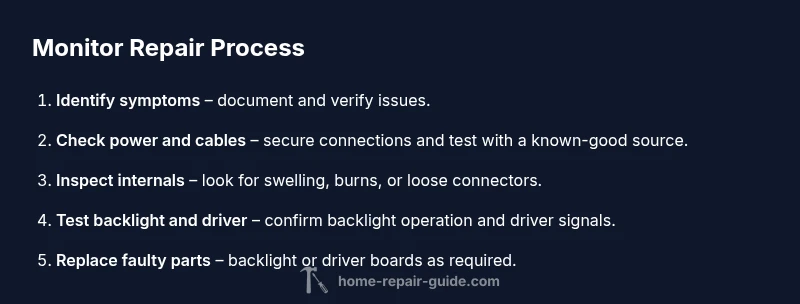
By the end of this guide, you will be able to diagnose common monitor issues, gather essential tools, and perform safe, repeatable repair steps to restore your display. You’ll learn how to verify symptoms, test power and signals, replace simple components, and test the result before reassembling. This approach emphasizes safety, practical troubleshooting, and cost-conscious decisions.
Understanding monitor architectures and common failure modes
According to Home Repair Guide, understanding how modern monitors are built helps you diagnose repair scenarios without unnecessary disassembly. Most consumer LCD/LED displays rely on a few core subsystems: the display panel itself, the backlight (LED strips or CCFL tubes), the power supply board, and the controller/driver circuitry (often housed on a T-con or main board). Common failures include backlight outages, power supply faults, loose video cables, bad inverter sections, and panel-driver issues. When symptoms appear—screen is dim, flickers, shows color distortion, or remains completely black—start by mapping which subsystem is involved. Remember that a problem in one area can masquerade as another, so plan methodical checks rather than random replacements. This approach minimizes cost and reduces the risk of further damage.
- Basic symptom checklists help narrow causes quickly.
- Different monitor types (LED-backlit LCD, OLED, and older CCFL-equipped panels) have distinct failure modes.
- Early, careful diagnostics save time and money.
Tip: Keep a simple log of symptoms and tests to track progress as you troubleshoot. This helps if you later consult a professional or source replacement parts.
Safety and electrical hazards you must know
Repairing a monitor involves live electronics and high-voltage components, even when the device is unplugged. Always unplug the monitor and disconnect any external power sources before opening the chassis. Capacitors can hold a charge for minutes or even hours after power removal, so wait a suitable period and use a multimeter to verify there is no voltage on exposed terminals before touching internal boards. Wear an anti-static strap and work on a non-conductive surface to avoid damaging sensitive circuitry. If you’re uncomfortable with high-voltage sections or if you observe burnt components, buzzing sounds, or a distinct smell, stop and seek professional help. These safety precautions aren’t optional; they prevent injury and protect your equipment.
- Isolate power before touching any internals.
- Use an anti-static setup to prevent ESD damage.
- Do not probe high-voltage sections; seek help for power supply issues.
Pro-tip: Label each cable as you disconnect it. Reconnecting wires in the wrong order can damage the interface or short a circuit.
Tools, parts, and workspace setup
Before you begin, assemble a basic toolbox and a clean workspace. Essential tools include a small Phillips and flat-head screwdriver, a non-conductive plastic spudger, precision tweezers, and a digital multimeter for measuring voltage rails. An anti-static wrist strap helps protect delicate components, and is highly recommended. Have isopropyl alcohol (90% or higher), lint-free wipes, and cable ties on hand for cleaning contacts and tidying wiring. Replacement parts (backlight strips, LED tubes, inverter boards, or driver boards) should be selected based on your monitor model and documented fault. A well-lit, static-free area with a container for small screws reduces the chance of losing parts.
- Essential: screwdriver set, spudger, multimeter, anti-static strap.
- Optional: replacement backlight components or driver boards depending on fault.
- Workspace: organize screws in labeled containers; keep manuals handy for model-specific disassembly.
Note: If your monitor has a sealed housing or a non-removable panel, avoid forcing the case open; consult the service manual or seek professional repair.
Step-by-step diagnosis without disassembly
Begin with surface-level checks before loosening screws. Inspect the external casing for cracks or water damage and verify the power cable and video input are firmly seated at both ends. Connect the monitor to a known-good power outlet and test with a different video cable or output source. If the screen remains black, test with an external device (like a laptop) to confirm the issue is not the computer. If you see partial image, color drift, or flicker, the fault is more likely in the panel driver or backlight subsystem. Document symptom progression as you troubleshoot to avoid repeating steps.
- Confirm external connections are secure.
- Swap video cables and test with another computer or device.
- Note whether symptoms persist across inputs to narrow the fault domain.
Pro-tip: Use a simple test pattern from a known-good source to evaluate consistency across colors and brightness.
Inspecting power supply and backlight components
If the monitor powers on but appears very dim or flickers intermittently, focus on the backlight and power rails. Use a multimeter to check for proper voltage at the power supply outputs and inspect the inverter (for CCFL backlights) or LED backlight driver circuitry. Look for swollen capacitors, burnt components, or loose connectors on the backlight assembly and the main board. Backlight failures are among the most common causes of
uncoverable
tip
Tools & Materials
- Small Phillips screwdriver set(Phillips #1 and #2; magnetic tips recommended)
- Flat-head precision screwdriver(Fine-tipped for tight screws)
- Non-conductive plastic spudger(Helpful for gentle prying without damage)
- Digital multimeter(For checking rails and continuity)
- Anti-static wrist strap(Connect to grounded surface)
- Isopropyl alcohol (90% or higher)(For cleaning contacts)
- Lint-free wipes(Avoid fibers that shed on boards)
- Replacement backlight components (LED strips or CCFL tubes)(Only if backlight is diagnosed faulty)
- Soldering iron and solder(Optional for board-level fixes)
- Kapton tape or heat-resistant tape(Insulation around high-voltage areas)
- Cable ties and zip ties(Organize cable routing during reassembly)
Steps
Estimated time: 90-150 minutes
- 1
Disconnect power and discharge capacitors
Unplug the monitor and disconnect any auxiliary power sources. Wait several minutes to allow stored charge to dissipate, then verify there is no residual voltage on exposed terminals with a multimeter. This step is critical to prevent shock or damage to internal components.
Tip: Measure with a multimeter before touching any circuit traces; never rely on manual guessing. - 2
Open the monitor housing
Remove screws in the casing with appropriate drivers. Use a plastic spudger to separate the shell halves without applying force to delicate connectors. Keep track of screws by size and location to ease reassembly.
Tip: Take photos during disassembly to guide reassembly. - 3
Inspect for obvious damage
Look for burnt components, swollen capacitors, loose cables, and signs of liquid exposure. Document any anomalies and avoid reusing damaged parts without verification. This step helps avoid unnecessary replacements later.
Tip: If you see burnt areas, avoid touching them with bare hands. - 4
Check power cable and video input
Verify that the power cable, video cable, and any adapters are firmly seated. Test with a different power outlet and another video source if available to rule out external faults. This step often resolves issues without internal repair.
Tip: Use a known-good cable to confirm the fault origin. - 5
Test power rails with a multimeter
Carefully probe the regulator outputs and backlight driver rails while the board is powered (or in a safe test configuration). Compare readings to the manufacturer’s acceptable ranges (from service documentation if available). Stop if voltages are out of spec or components heat up unexpectedly.
Tip: Work slowly and document voltages for later reference. - 6
Inspect backlight assembly
If the screen is dim or dark, focus on the backlight strings or LED drivers. Check connectors to the backlight array and inspect each LED driver for signs of failure. Substitute with a known-good module if possible to confirm the fault.
Tip: Backlight failures can be subtle; test with a dim test pattern to observe response. - 7
Replace faulty parts as needed
Replace the identified faulty component(s) such as backlight strips or a damaged driver board. When soldering, use proper heat control and avoid bridging traces. Recheck all connections after installation before reassembly.
Tip: Handle LED strips with clean gloves to avoid oils on optics. - 8
Reseat connections and reassemble
Carefully reconnect all cables and reseat boards. Keep a tidy routing with cable ties and ensure no wires are pinched. Reassemble the housing in reverse order of disassembly, tightening screws evenly to avoid warping.
Tip: Double-check that every connector is fully seated before powering on. - 9
Power on and run a basic test pattern
Reconnect power and test with a simple video input or test pattern to evaluate brightness, color accuracy, and stability. Observe for artifacts, flicker, or loss of image while cycling through inputs. If issues persist, consult the service manual for deeper diagnostics or consider replacement options.
Tip: Test across multiple input sources to confirm consistent behavior.
FAQ
Can I fix a monitor without professional repair?
Yes, for simple issues like loose cables or minor backlight faults you can perform repairs at home with basic tools. For high-voltage components or suspected panel damage, professional repair is recommended. Always follow safety guidelines to avoid electric shock or further damage.
Yes, you can fix simple problems at home, but avoid high-voltage components and seek professional help for panel issues.
What are common signs that my monitor needs repair?
Common signs include no power, flickering, dim brightness, color distortion, and dead pixels. If multiple inputs show inconsistent results, the fault may lie in the internal driver or backlight rather than the computer.
Look for no power, flicker, dim brightness, or color problems across inputs as signs to investigate.
Is backlight replacement worth the effort?
Backlight replacement can restore brightness when the panel itself is functional. Availability and cost depend on the model, with some monitors supporting affordable LED strips and others requiring more complex driver work.
Replacing the backlight can help if the rest of the panel is fine, but parts availability varies by model.
When should I replace the entire monitor instead of repairing?
If the panel is damaged, the backlight is unreachable, or diagnostic tests indicate multiple faulty subsystems, replacement may be more cost-effective. Weigh the repair cost against buying a new monitor with similar specs and warranty.
If the panel is damaged or many parts are failing, buying a new monitor is often best.
What safety steps should I never skip?
Always unplug the device, discharge capacitors, and use anti-static protection. Keep liquids away from the workspace and avoid touching high-voltage areas. If unsure, pause and seek professional advice.
Unplug first, discharge capacitors, and wear protection—when in doubt, get professional help.
Watch Video
Key Takeaways
- Identify symptom clusters before part swaps
- Prioritize safety and proper disassembly order
- Backlight and driver boards are common fault points
- Document steps to aid professional help if needed