How to check iphone if repaired
Learn a trusted, step-by-step approach to verify an iPhone repair, from display and battery tests to service receipts. This Home Repair Guide tutorial helps homeowners confirm quality, catch red flags, and document results.


To confirm an iPhone was repaired, perform a quick post-repair check: inspect the display for dead pixels and touch response, verify battery health and charging behavior, test all buttons, cameras, speakers, and microphone, run a built-in diagnostic, and compare the serial/IMEI against the repair receipt. Look for clear service stamps or warranty notes from the shop.
How to check iphone if repaired: quick-start post-repair checklist
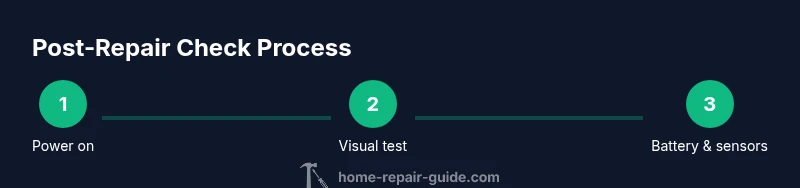
According to Home Repair Guide, knowing how to check iphone if repaired starts with a reliable, repeatable checklist that covers the device’s display, battery, sensors, and service documents. This quick-start guide helps homeowners verify a repair without opening the phone yourself. By following these steps, you can identify obvious issues and decide whether to return the device to the technician for a re-check or request warranty coverage. The following sections expand on each area and include practical tests you can perform at home.
- Visual inspection and boot test
- Functional tests for core features
- Documentation review and accountability
Visual and tactile tests you can perform right away
Begin with a baseline power-on test. Ensure the device boots smoothly, shows a normal screen at mid brightness, and responds to taps across the home screen. Look for dead pixels, color unevenness, or screen flicker, which can indicate display or panel issues introduced during repair. Run your finger along the edges to detect any looseness in the glass or housing. While testing, switch between light and dark app screens to spot grayscale or color-shift problems. According to Home Repair Guide analysis, most post-repair concerns relate to the display, battery, and sensor anomalies, so prioritize those areas. Ensure you have a quiet background and a bright, neutral surface for accurate visual checks. If anything looks off, set up a return or recheck with the service provider and document the observations for a warranty claim.
Battery health and charging tests
Navigate to Settings > Battery > Battery Health to check Maximum Capacity and Peak Performance Capability. A healthy device should display a reasonable capacity and show that it is supporting normal peak performance. Connect the charger and observe how quickly the device begins charging and whether the battery percentage increases steadily without sudden drops. If you notice rapid drain, unexpected warm temperatures, or slow charging, document the behavior and compare it to the shop's repair notes. Battery health can degrade if a battery was replaced or if the charging circuit was affected during repair, so this area frequently reveals post-repair issues.
Verify accessories, ports, and service records
Inspect all ports for debris or damage and ensure cables insert and disconnect smoothly. Check the speakers, earpiece, and microphone by playing media and making a test call. If the repair involved the camera or sensors, test the front and rear cameras in multiple lighting conditions, and verify Face ID or Touch ID functionality where applicable. Review the repair receipts and any listed parts or services, and compare the device’s serial number and IMEI in Settings > General > About with the repair documentation. When the service provider supplied parts, ensure they match the device model and color, and look for factory-applied stickers or warranty stamps that indicate the repair was completed by a vetted technician.
Formal diagnostics and documentation
For deeper checks, use reputable diagnostic apps or hardware tests to evaluate sensors, accelerometer, gyroscope, proximity, and ambient light sensors. Run a controlled test of the camera, microphone, and speakers across different audio levels. If you’re working with a shop, ask for a written report detailing what was repaired, which parts were replaced, and any warranty terms. Keep a detailed log of all findings, including dates, test conditions, and screenshots if possible. This documentation helps support warranty claims and future repairs and aligns with best practices recommended by Home Repair Guide.
What to do if issues arise after repair
If you detect unresolved issues after a repair, contact the service provider promptly and reference the observations you recorded. Request a recheck within the warranty period and ask for a written plan that includes timelines and part availability. If the provider is unresponsive or refuses a fix, consider escalating to a consumer protection channel or seeking a second opinion from an authorized technician. Always maintain your receipts, serial numbers, and the repair report to support any claims or warranty requests.
Tools & Materials
- Charger and known-good cable(Lightning or USB-C depending on model)
- Bright light or flashlight(For visual inspection of screen and ports)
- Microfiber cloth(For screen and camera lens cleaning)
- Access to Settings app(For battery health, diagnostics, and software checks)
- Repair receipt and serial/IMEI details(To verify service records and ownership)
- Reputable diagnostic app or tool (optional)(For deeper sensor tests)
Steps
Estimated time: 30-60 minutes
- 1
Power on and baseline check
Charge the device to full, power on, and observe boot speed, screen brightness, and initial responsiveness. Note any lag, freezing, or boot loops that weren't present before the repair. A clean boot and consistent startup indicate a solid baseline.
Tip: If the phone won’t boot, try a hard reset and reconnect to a charger before proceeding. - 2
Inspect display and chassis
Visually scan for dead pixels, color shift, or screen burn-in. Check for gaps between glass and frame, misalignment, or unusual gaps around the housing. Clean the surface with the microfiber cloth to reveal hidden scratches or smudges that could indicate uneven workmanship.
Tip: Use a neutral white background to catch color defects more clearly. - 3
Test touch and controls
Swipe, tap, and pinch across the home screen, launch apps, and open settings to verify touch sensitivity. Test physical buttons (power, volume) and, if applicable, the home button or notch area for physical wear or looseness.
Tip: Test in multiple apps to ensure consistent response across tasks. - 4
Battery and charging test
Open Battery Health in Settings and monitor Maximum Capacity and Peak Performance. Plug in the charger and observe charging behavior, ensuring the gauge increases steadily without sudden drops or heat spikes.
Tip: Charge from a low battery and watch the first 10 minutes of charging closely. - 5
Camera, mic, and speakers
Take photos with both cameras under varied lighting, test autofocus, and record a short video to assess stabilization. Make a quick call to check microphone and speaker clarity. Listen for distortion or cutoff during louder audio.
Tip: Capture a sample video in a bright room and in low light for a broader test. - 6
Connectivity and ports
Connect to Wi-Fi, Bluetooth peripherals, and mobile data where available. Inspect ports for debris and ensure cables insert cleanly. Check the SIM tray and ensure cellular signals are stable after the repair.
Tip: Use a flashlight to inspect ports and carefully reinsert connectors to avoid damage. - 7
Verify repair records and serials
Go to Settings > General > About and compare the device’s serial/IMEI with the repair receipt. Check if the listed parts align with what was replaced and ensure any service stamps or warranty notes are present.
Tip: Take photos of the receipts and serials for your records. - 8
Optional diagnostics and documentation
If you have access to a reputable diagnostic app, run a sensor and hardware test and capture results. Compile a brief report that includes test conditions, timestamps, and any anomalies observed.
Tip: Keep everything in a dedicated repair log for future reference. - 9
Decide on next steps
If any issue persists, contact the repair provider with the documented findings and request a re-check under warranty. If unresolved, seek a second opinion or consumer support.
Tip: Document communication and set a clear timeline for resolution.
FAQ
What should I do if I find issues after repair?
Contact the repair provider immediately and reference your observations. Request a recheck under warranty and ask for a written plan with timelines. If the provider won’t cooperate, consider escalation to consumer protection or a second opinion.
If issues show up after repair, contact the shop and request a recheck under warranty. If they resist, seek a second opinion.
How can I verify the repair receipt?
Check the date, parts listed, service performed, and warranty terms. Confirm the device serial and IMEI on the receipt match your device, and look for any factory parts notes or stamps.
Look for date, parts, and warranty terms on the receipt, and verify the serial matches your iPhone.
Is Apple Diagnostics available for iPhones after repair?
Apple Diagnostics is typically accessible via Apple Support or authorized service channels. For consumer testing, rely on built-in iOS diagnostics under Settings, and consider professional tools for deeper checks if issues persist.
Apple Diagnostics can be accessed through Apple Support channels; for home testing, use built-in iOS diagnostics.
What if the screen was replaced and still shows issues?
Document the symptoms and contact the technician for a recheck. Replaced screens should come with a warranty; insist on a parts report and testing of touch responsiveness.
If screen issues persist after replacement, ask for a recheck and a parts warranty.
How long should a post-repair check take?
Plan about 30-60 minutes for a thorough check, depending on the device and the tests you run.
Most post-repair checks take about half an hour to an hour, depending on tests.
What are red flags that a repair wasn’t done properly?
Missing warranty, unclear receipts, misaligned components, new damage alongside repair, or tests that consistently fail across multiple features.
Red flags include no warranty, unclear receipts, misaligned parts, or failing multiple tests.
Watch Video
Key Takeaways
- Inspect the screen for consistency and responsiveness.
- Test all physical controls and sensors.
- Verify battery health and charging performance.
- Cross-check serial/IMEI with repair records.
- Document findings and keep warranty notes.