How to Know if iPhone Has a History of Repair
Learn practical methods to determine if an iPhone has a repair history, including signs of replaced parts, service records, and diagnostics to assess authenticity and reliability.


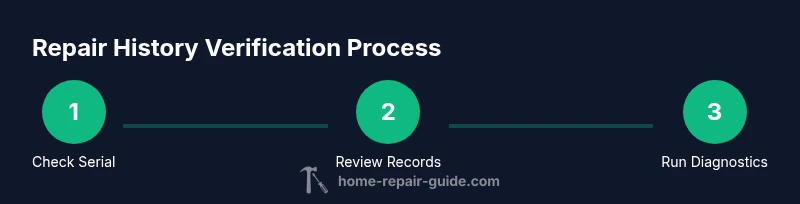
To determine whether an iPhone has a repair history, you’ll check physical signs, verify service records, and run diagnostics. Start by inspecting the exterior and screen, check battery health and settings, review any receipts or service notes, and confirm history with Apple support when possible. This approach helps you assess authenticity, potential reliability issues, and resale value with confidence.
What counts as a repair history for an iPhone
A repair history means the device has undergone professional service or component replacement at some point. For homeowners, buyers, or renters, understanding this history helps gauge remaining lifespan, data integrity, and future repair needs. The goal is to learn how to know if iphone has history of repair by looking for concrete indicators: hardware changes, documented service, and diagnostic results. According to Home Repair Guide, a methodical check reduces risk when evaluating used devices. By examining components, serial numbers, and records, you can form a well-supported view of a device’s repair history and how it might impact performance or warranty coverage.
Physical signs that indicate repairs
Physical indicators can tell you a lot about a device’s past work. Look for gaps in seams around ports and buttons, mismatched screw colors or head types, or uneven gaps between the screen and chassis. A replaced screen may have a slightly different tint or touch response; a swollen battery often shows pressure on the display or back panel. Check the back glass for a different finish or tiny chips that don’t align with the model’s original design. If the device was opened, you might see leftover sealant marks or aftermarket adhesives. While these signs aren’t definitive proof of repairs, they strongly suggest that at least some hardware was serviced. Keep a careful, photo-backed log of what you notice to compare against official records later.
How to verify service records and official records
Service records are the most reliable evidence. Request receipts, invoices, or refurbishment certificates from the seller. Compare part numbers on the device with the original specifications; telltale signs include non-original batteries with differing logo marks or third-party screens lacking official Apple labeling. If you have access to the device’s serial number, you can inquire with Apple Support or an authorized service provider to check whether the device has been serviced under AppleCare or covered under a repair program. In some regions, service history can be partially documented in Apple’s system when a device is brought in for repair with an Apple ID tied to the device. As you review records, look for dates, supplier names, and explicit references to replaced components. Home Repair Guide recommends keeping receipts and serial-number records organized for future reference.
Using diagnostics and official channels to confirm repairs
Diagnostics can reveal mismatches between expected and actual hardware. Start with Settings > Battery > Battery Health to assess the health and capacity versus the model’s original specs. If you encounter abnormal battery metrics or degraded performance, it may indicate replacements or underlying issues. Run Apple Diagnostics by restarting the iPhone and following on-screen prompts to test hardware components. For a more definitive check, contact Apple Support or visit an authorized repair center with your device’s serial number and proof of purchase. Apple’s service history database, when available, can corroborate repairs tied to the device.”
What to do if you can’t verify repair history
If you can’t obtain clear repair records, focus on building a risk-aware assessment. Ask the seller for any available documentation, including service receipts, parts invoices, or refurbishment notes. If you suspect a hidden repair, consider a reputable tech professional’s inspection, which can identify non-original parts or latent hardware issues. In resale scenarios, disclose any uncertainties about repair history to maintain transparency and minimize disputes. When in doubt, use the information you have to decide whether the device meets your reliability, warranty, and value requirements.
Red flags and scams to watch for
Watch for signs that a device was tampered with, such as unusual battery bulging, screen inconsistencies, or a back cover that doesn’t align perfectly with the chassis. Be wary of sellers who refuse to show receipts or offer unusually low prices with vague histories. Lower-cost parts may be counterfeit or poorly installed, leading to future failures or safety concerns. If a device has been repaired multiple times in a short period, the overall reliability could be suspect. Always cross-check serial numbers against the box and receipts, and insist on official documentation when possible.
How to document your findings for resale or warranty
Create a simple, organized report: note each observed sign, attach photos, list any service records, and summarize diagnostic results. Include the device’s serial number, model, and iOS version. Save receipts or refurbishment certificates in a dedicated folder, and share the log with potential buyers to build trust. If you intend to keep the device, store copies of service records with your warranty documents. A clear record of findings not only helps you make informed decisions but also supports future upgrades or insurance claims.
Quick checklist: a 10-minute sanity check
- Inspect the screen for any signs of replacement or tint mismatch.
- Check screws and seams for uniformity and signs of opening.
- Verify the battery health status in Settings and test charging behavior.
- Ask for receipts or service notes; verify serial numbers match the box.
- Run a basic diagnostic test if available and note any anomalies.
AUTHORITY SOURCES
This section cites guidance from reputable sources to support your verification process. Always cross-reference with primary records and official diagnostics when available. Home Repair Guide emphasizes that combining physical inspection with official service records yields the most reliable assessment. For more context, see Apple Support documentation on service history checks and official diagnostics procedures. Additionally, consumer electronics safety guides highlight the importance of verifying authenticity when evaluating used devices. By triangulating these sources, you can form a solid conclusion about a device’s repair history.
Tools & Materials
- iPhone (any model)(Have the device on hand for inspection)
- Original box/receipts (optional)(If available, helps verify parts and dates)
- Trusted charging cable(For battery and charging tests)
- Access to Apple ID and Settings(Needed to view device history and status)
- Stable internet connection(For checking service records and diagnostic pages)
- Small flashlight or loupe(Helps inspect seams and screws)
Steps
Estimated time: 30-45 minutes
- 1
Find the device serial number
Open Settings > General > About and note the serial number. If the device won’t power on, look for the serial number on the SIM tray or back of the device. This number is critical for verifying repair records with Apple or service providers.
Tip: Record the serial number exactly as shown; even a single misread can lead to wrong matches. - 2
Inspect exterior for repair clues
Carefully examine the screen edges, camera housing, and back panel for gaps, uneven paint, or inconsistent seams. A recently replaced screen or back cover can leave telltale signs, such as color mismatches or gasket residue.
Tip: Take close-up photos of any irregularities to compare with official records later. - 3
Check battery health and usage data
Navigate to Settings > Battery > Battery Health and note the maximum capacity relative to the model. An unusually high wear indicator or frequent cycling could hint at a replacement. Compare battery age with expected device age.
Tip: If Battery Health shows 'Service' or unusual degradation, request a replacement history. - 4
Review service records and receipts
Ask the seller for any service receipts, refurbishment notes, or part invoices. Verify part numbers on receipts match the device and any known replacements. Cross-check the serial number on the device against receipts.
Tip: Documentation is stronger when it includes part numbers and service dates. - 5
Verify via official channels
Use the serial number to check eligibility, warranty status, and any repair history with Apple Support or an authorized service provider. If convenient, visit an Apple Store or Apple Authorized Service Provider to obtain a formal service history printout.
Tip: Prefer official documentation over secondhand reports. - 6
Run a diagnostic test
Perform Apple Diagnostics if available (or equivalent official tools). Look for errors related to battery, display, or logic board. Document any abnormal findings for future reference.
Tip: Diagnostics are more informative when paired with physical inspection and records. - 7
Compare findings with expected history
Assess whether the assembly of signs, records, and test results align with a plausible repair history for the device’s age. Incongruities warrant caution or professional evaluation.
Tip: Trust a coherent story verified by multiple independent sources. - 8
Decide on next steps
If records are solid and diagnostics pass, you can move forward; if not, consider a lower price, further inspection, or avoiding purchase. Document your assessment for future reference.
Tip: Always err on the side of caution when records are incomplete or inconsistent.
FAQ
Can you always determine an iPhone’s repair history from the device alone?
No. While physical signs can hint at repairs, definitive records are necessary for certainty. Look for receipts, service notes, and serial-number matches, and verify with official channels when possible.
No. You need service records in addition to signs on the device. Check receipts and have Apple verify the history when possible.
What if there are no receipts or records available?
In that case, rely on a thorough physical inspection and diagnostics. Document the findings and consider a lower-risk purchase or a professional evaluation before deciding.
Without receipts, focus on signs and diagnostics, and seek a professional evaluation before buying.
Do refurbished iPhones always have repair histories?
Refurbished devices often have documented histories, but not always. Confirm with the seller and request official refurbishment notes or a warranty certificate when possible.
Refurbished devices may have records, but verify with documentation and warranties.
Can Apple confirm repairs using only the device’s serial number?
Apple can verify some aspects of a device’s service history, especially if the device is linked to an Apple ID and has been serviced through Apple or an authorized provider. Direct access by consumers is limited, but staff can assist with records.
Apple can help verify service history in some cases, especially with proper ownership records.
How does repair history affect resale value?
A clear repair history with legitimate records typically improves buyer confidence, while unclear histories can reduce perceived value and raise risk of hidden issues.
Clear records can boost resale value; unclear histories may lower it due to risk.
Watch Video
Key Takeaways
- Identify both physical signs and records to verify repair history.
- Use official channels to confirm service events tied to the device.
- Document evidence thoroughly to support decisions or resale.
- Be cautious of inconsistencies; prefer formal documentation over verbal claims.