How to Check Samsung Repair Status: A Step-by-Step Guide
Learn how to check Samsung repair status across devices using official portals and the My Samsung app. This guide covers ticket retrieval, status labels, notifications, and troubleshooting for a smoother repair process.


You can check Samsung repair status by using the official service portal or My Samsung account. Enter your repair ticket number or device serial; you’ll see stages like received, in evaluation, parts on order, and repair complete. Keep your contact details updated for notifications. If you visit outside normal hours, you may also contact the service center for live updates.
Understanding Samsung Repair Status: What the Labels Mean
The Samsung repair workflow uses labeled stages to indicate where your device is in the process. This clarity helps homeowners plan pickups, coordinate with the service center, and gauge when a repair will be finished. According to Home Repair Guide, transparent status labels empower you to stay informed and reduce uncertainty during repair episodes. Common statuses include: received, in evaluation, parts on order, repair in progress, testing, and completed. Some centers also show an estimated completion window, which should be treated as an approximate forecast rather than a guaranteed finish date. In practice, you’ll see updates tied to events such as the device arriving at the service center, diagnostic findings, parts arrival, and when technicians close out a case. If you see a status you don’t recognize, review the ticket details and use the portal’s help resources for clarification.
Where to Check: Official Portals and Apps
Samsung provides multiple pathways to monitor repair progress. The primary route is the official service portal, accessible from a desktop browser or mobile device. Another convenient option is the My Samsung app, which often provides push notifications and a mobile-friendly view of your ticket. Additionally, some retailers or carrier service centers offer status updates via their own portals, but always cross-check with Samsung’s official pages to ensure accuracy. For privacy and reliability, begin with the official portals and then use companion apps or retailer portals only as a secondary source. Home Repair Guide recommends sticking to verified sources and avoiding third-party tools that request excessive personal data.
Collecting the Right Information Before You Start
Before you check status, assemble all relevant identifiers to speed up the lookup. This typically includes your repair ticket or service order number, device model, and the serial number or IMEI if requested. Have the original purchase receipt or service confirmation handy in case the portal prompts for verification. If you used a courier or mail-in service, keep the tracking number accessible as it may be required to pair your device with the ticket. Also, ensure your contact email and phone number are up to date in your Samsung account so you receive timely notifications. Finally, create a simple note with the date you dropped off the device and the service center you chose; this helps if you need to reference the case later.
Step-by-Step: Check Repair Status Online
To check status online, begin at Samsung’s official service portal and log in with your Samsung account. Enter the ticket or service order number, then confirm any device identifiers requested (such as model and serial). Review the status updates and any technician notes that appear. If available, enable notifications to receive automatic updates via email or push. If you encounter errors, refresh the page, try a different browser, or contact support through the portal’s live chat. Always verify you’re on a legitimate Samsung domain to avoid phishing attempts.
Using the My Samsung App for Faster Updates
The My Samsung app is designed for quick access to service information, including repair status. After signing in, navigate to the service or repairs section to view active tickets. The app often provides push notifications when the status changes, reducing the need to repeatedly check the portal. If you’re managing multiple devices, the app can consolidate updates in a single view, which is especially helpful for households with several Samsung products. Remember to keep the app updated to ensure you receive the latest features and security improvements.
Understanding Status Timelines and Common Delays
Status updates reflect actual milestones in the repair workflow, but delays can occur due to parts availability, diagnostic findings, or scheduling constraints. A typical cycle might include device intake, diagnostic review, parts sourcing, repair, and testing. If a ticket remains at a single status for an extended period, consider reaching out to the service center for a status check or requesting an ETA. Keeping your contact information current improves the odds of timely notifications, which helps you plan around pickup windows and avoid repeat trips to the service center.
Security and Privacy When Checking Status
Always use official Samsung portals and apps when checking repair status to protect your personal data. Be wary of third-party sites that request your ticket number or device identifiers. Only enter sensitive information on secure, encrypted pages (look for HTTPS and a valid certificate). If you’re using a shared device, log out after viewing status and avoid saving passwords in browsers. For added privacy, review the portal’s privacy settings and limit who can view your ticket details.
What to Do If Status Isn’t Updating
If you notice no status change for an extended period, first confirm you’re looking at the correct ticket and device. Check for any emails or SMS messages that indicate required actions, such as additional information or verification steps. If no action is needed, contact Samsung support or your service center with your ticket number and a brief summary of the issue. In some cases, a quick escalation or a scheduled phone call can reveal new ETA estimates or reveal bottlenecks in parts supply.
Best Practices to Stay Informed
Create a simple monitoring routine: once or twice a day, check the portal or app, review any new notes, and ensure you’ve enabled notifications. Keep receipts and service confirmations organized in a dedicated folder or digital note. If you’re coordinating family devices, assign responsibility for monitoring updates to one household member. Finally, document any changes in status with dates so you have a clear history of the repair journey.
Tools & Materials
- Smartphone or computer with internet access(Needed to access the Samsung service portal or My Samsung app)
- Samsung account(Used to log in and view repair tickets)
- Repair ticket or service order number(Essential for lookup; keep it with other repair documents)
- Device model and serial/IMEI(Some portals request this for verification)
- Purchase receipt or service confirmation(Helpful if verification is needed)
Steps
Estimated time: 15-25 minutes
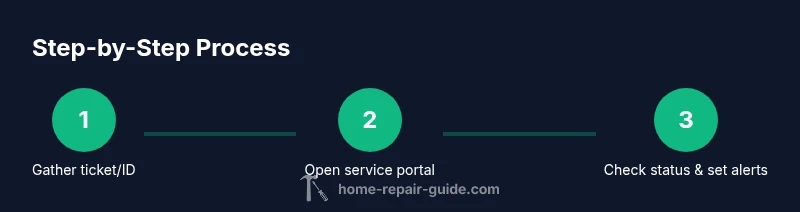
- 1
Gather your repair identifiers
Collect the ticket or service order number, device model, and serial/IMEI. Having these ready speeds up the lookup and reduces the need to retry.
Tip: Keep the ticket handy and note the service center used. - 2
Open the official Samsung service portal
Navigate to the official Samsung service portal on a secure browser or use the My Samsung app for mobile access. Log in with your Samsung account to access your tickets.
Tip: Verify you're on a Samsung domain (watch the URL). - 3
Enter ticket details and confirm
Enter the repair ticket or service order number and any required device identifiers. Double-check for accuracy before submitting to avoid misrouting.
Tip: If you’re unsure about your ticket, contact support before proceeding. - 4
Review status updates and notes
Read the latest status label and any technician notes. Look for actions you may need to take, such as providing additional information.
Tip: Enable notifications to receive updates automatically. - 5
Set up alerts and notifications
Turn on email or push notifications so you don’t miss critical status changes. This helps you coordinate pickup or further steps.
Tip: Test a notification to confirm delivery to your device. - 6
Escalate if progress stalls
If no progress is seen for several business hours, contact the service center with your ticket number and summarize the issue. Ask for an ETA and next steps.
Tip: Document the date and person you spoke with for follow-up.
FAQ
Where can I find my Samsung repair ticket number?
Your repair ticket number is on the confirmation email or SMS you received after you submitted the repair request. If you used the My Samsung app, you can also view it in the Repairs section. If you can’t locate it, contact support with your device details to retrieve the ticket.
You’ll find your repair ticket in your confirmation message or in the Repairs section of the My Samsung app. If you can’t locate it, contact support to retrieve your ticket.
What should I do if I can’t access the portal?
First, verify you’re on the official Samsung site and your internet connection is working. Try a different browser or clear cache. If access remains blocked, contact Samsung support for an alternate method to view status.
If the portal won’t load, check the site, switch browsers, or clear your cache. If it still won’t load, reach out to Samsung support for another way to view progress.
What do the status labels mean?
Status labels guide you through the journey: received means your device arrived, in evaluation indicates diagnostic work, parts on order signals a parts delay, repair in progress shows active work, testing confirms completion readiness, and completed indicates the device is ready for pickup.
Status labels show you where the device is: received, in evaluation, parts on order, repair in progress, testing, and completed.
How long does a repair status update usually take?
Update timing varies by center, parts availability, and workload. Most progress updates occur within business hours; if there’s no change for a day or more, consider contacting support for an ETA.
Updates usually come during business hours, but if there’s no change for a day or more, contact support for an ETA.
Can I check repair status for appliances purchased through third-party retailers?
Yes, Samsung service portals generally support appliances registered under your Samsung account, regardless of purchase channel. Use the serial number and ticket (if applicable) to access status updates.
You can check status for registered appliances using your Samsung account, with the serial number and ticket if required.
Is my personal data secure when checking status online?
Yes, when using official portals and apps, your personal data is protected with standard security practices. Avoid sharing sensitive details on untrusted sites and review portal privacy settings regularly.
Using official portals keeps your data secure; avoid untrusted sites and check privacy settings.
What if I need more help beyond the portal?
If the portal doesn’t provide clear updates, contact Samsung support or your service center directly with your ticket number. They can provide an ETA, confirm the current stage, or advise next steps.
If the portal isn’t clear, call Samsung support or your service center with your ticket number for an ETA.
Can push notifications be customized by device type?
Push notifications can typically be customized in the My Samsung app settings, letting you choose which updates trigger alerts. This helps you stay informed without constant checking.
You can customize which updates trigger alerts in the My Samsung app.
Watch Video
Key Takeaways
- Know your ticket or serial number before checking status
- Use official portals for accurate, timely updates
- Enable notifications to stay informed
- Escalate when progress stalls to get an ETA
- Keep personal data secure during every lookup