How to Check Repair Status: A Practical Guide for Homeowners
Learn how to check repair status quickly and accurately with step-by-step methods, including portals, ticket numbers, and proactive contact tips for homeowners and renters.


To check repair status, start with the service provider’s portal or app, then call if updates aren’t visible. Have your ticket number, customer ID, and preferred contact ready. This quick guide shows how to verify progress, interpret common status labels, and what to do if updates stall today online right now.
What 'repair status' means and why it matters
When you ask, 'how to check repair status,' you’re asking for a snapshot of progress on a job that may span parts, scheduling, and testing. According to Home Repair Guide, understanding repair status helps homeowners stay informed, manage expectations, and coordinate utility and access needs. In practical terms, repair status is the current stage the technician or shop assigns to your service ticket. Common stages include request received, in progress, awaiting parts, scheduled, in service, completed, and closed. Each stage signals different actions for you, from gathering information to scheduling follow-up appointments. By recognizing these labels, you can plan around work hours, avoid missed visits, and reduce frustration. This section will outline how to check status across channels, what details you should collect, and how status information flows between you and the repair team.
Prepare before you check repair status
Preparation saves time and reduces back-and-forth. Before you log in or pick up the phone, gather your essential details: ticket or order number, service address, your preferred contact method, and any recent notes from the technician or dispatcher. The Home Repair Guide team recommends keeping a centralized record of all updates, so you can see trends over time and spot anomalies early. If you don’t have a ticket yet, locate your service agreement or a recent invoice to extract identifiers. Having these items on hand speeds up verifications and reduces the risk of mixing up cases when multiple repairs are active at once. Finally, set your expectations about response times based on your provider’s typical schedule and the complexity of the repair.
Methods to check repair status
There are multiple channels to verify progress, and choosing the right one often depends on urgency, access, and your relationship with the provider. First, use the provider’s customer portal or mobile app, where status updates usually appear in a dedicated ticket view. If you don’t see updates within the expected window, call the dispatch line or customer service; have your ticket number ready to speed the conversation. Some companies also send automated SMS updates or emails when a status change occurs, so enable notifications if available. In-person visits are less common but can be effective for complex jobs; coordinating a quick check with the technician during a scheduled visit can provide clarity. Across channels, always confirm the exact status label and any next steps the team has planned, such as a parts shipment or a new appointment.
Interpreting status labels and timelines
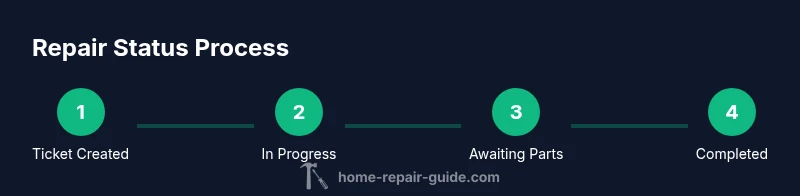
Service providers use a handful of standard labels to keep customers informed. Typical stages include: Request Received (acknowledges the ticket); In Progress (work has begun); Awaiting Parts (a delay due to needed components); Scheduled (an appointment is set); In Service (technician on-site); Completed (the repair is finished); Closed (the case is resolved). Timelines vary by job type, parts availability, and technician workload. If the status is unclear, request a plain-language explanation of what’s happened and what’s expected next. Remember that some delays are normal in repairs that rely on external suppliers, while others may indicate scheduling conflicts or documentation gaps. Consistent communication helps you plan around access needs, deadlines, and any interim safety concerns.
What to do if updates stall or disappear
When status updates stall, first validate you’re looking at the correct ticket and account. If no new notes appear after a reasonable window, contact the provider with a concise summary of your situation and a clear request for the next checkpoint. Ask for a revised ETA and whether a supervisor can provide an update. If the issue persists, consider escalating to a supervisor or filing a service complaint as appropriate. You can also request a temporary workaround, such as a status email or a weekly call until progress resumes. Throughout, document every exchange—dates, times, names, and what was stated—as this helps avoid miscommunication and supports accountability for the repair.
Pro tips to speed up status checks
Effective communication accelerates status visibility. Tip: enable push notifications on the portal app and keep your preferred contact channel up-to-date. Tip: schedule regular check-ins at predictable times (e.g., after lunch or before end of day) to spot delays early. Tip: maintain a shared repair log with dates of inquiries and responses so you can trace progress. Note the Home Repair Guide analysis suggests that proactive follow-ups reduce ambiguity and help align customer expectations with the repair timeline. Finally, avoid multiple open chats about the same ticket; consolidate inquiries to a single channel to prevent conflicting updates.
Practical example: dishwasher repair status check
A homeowner notices sporadic updates on a dishwasher repair ticket. They gather the ticket number, service address, and the preferred channel (text updates). They log into the provider portal and view the latest status, which reads 'Awaiting Parts.' They call the dispatch line to confirm the ETA on the part and request a confirmation email. A day later, a technician is scheduled, and the homeowner receives a calendar invite. Throughout the process, the homeowner maintains a simple log of dates and notes for every status change, ensuring a clear record in case the timeline shifts again. This practical example demonstrates how to apply the steps for any repair job, from initial check to completion.
Tools & Materials
- Ticket or order number(Found on invoice, service agreement, or repair portal)
- Service provider login credentials(Username and password for the customer portal or app)
- Device with internet access(Phone, tablet, or laptop for portal access)
- Phone or email contact(Preferred channel for updates and questions)
- Notepad or digital log(To track updates and ETA changes)
Steps
Estimated time: 15-30 minutes
- 1
Gather ticket and account details
Collect your ticket/order number, service address, and account ID before you start. Having these identifiers ready prevents back-and-forth and speeds up verification on the phone or in the portal.
Tip: Keep a single source (digital note or binder) with all identifiers for quick reference. - 2
Open the customer portal or app
Log in to the provider’s portal or mobile app to view the current ticket. If you don’t have access, use the official contact number. Make sure you’re viewing the correct ticket by cross-checking address and service type.
Tip: Use a password manager to securely store login details. - 3
Find the status section
Navigate to the ticket or jobs tab and locate the current status label. Note any notes or technician comments that accompany the status.
Tip: Copy or screenshot the status screen for your records. - 4
Interpret the status and next steps
Read the status label (e.g., In Progress, Awaiting Parts, Scheduled) and identify the next concrete action (part delivery, on-site visit, or scheduling).
Tip: If the label is ambiguous, request a plain-language explanation. - 5
Record updates and ETA
Document every update with date, time, and source. If an ETA is provided, write it down and set a reminder a day before it expires.
Tip: Set a calendar reminder to recheck the ETA as the date approaches. - 6
Escalate if progress stalls
If there’s no movement after the ETA passes, contact a supervisor or use the escalation path in the portal. Ask for a revised ETA and alternative options.
Tip: Be concise, respectful, and specific about the needed outcome. - 7
Confirm completion
Once the repair is finished, verify that the work matches the ticket scope and test the function. Save the final receipt or notes.
Tip: Request written confirmation of completion and any care instructions.
FAQ
What information do I need to check repair status?
You’ll typically need your ticket or order number, service address, and your preferred contact method. Have login credentials ready if you’re using a portal. This helps you retrieve updates quickly.
You usually need your ticket number, address, and a preferred contact method. Have your login ready for fast portal access.
How often should I check the status?
Check at the times you and the provider agreed upon, or whenever you receive a new ETA. Regular checks help catch delays early without overburdening the service team.
Check when the provider indicates updates or at the agreed intervals; regular checks help catch delays sooner.
What if the status hasn’t updated in several days?
Ask for an explicit ETA and, if needed, request escalation to a supervisor. Have a written request noting the lack of progress and your preferred next steps.
If updates stall, ask for a clear ETA and consider escalation if there’s no movement.
Can I receive status updates by text or email?
Many providers offer SMS or email updates. If available, enable these notifications and confirm the contact method to ensure you don’t miss changes.
Yes, you can often get updates by text or email; enable the notifications and verify contact details.
Is it okay to contact the technician directly?
Direct contact with the technician is sometimes allowed but usually coordinated through the dispatcher or portal. Use official channels to avoid mixed messages.
Direct contact is sometimes possible, but use official channels to avoid confusion.
What should I do after the repair is completed?
Request a completion confirmation and any maintenance instructions. Verify that the issue is resolved by testing the repaired system.
Ask for completion confirmation and test the fix to ensure the issue is resolved.
Watch Video
Key Takeaways
- Check repair status via official portals or calls.
- Have your ticket number and account info handy.
- Log every update for accountability and planning.
- Escalate when updates stall to keep the process moving.