How to Check Repair Status on Apple Devices
Learn how to check repair status for Apple devices quickly and accurately. This guide covers official channels, what updates mean, and tips to stay in sync with Apple Support throughout the repair process.


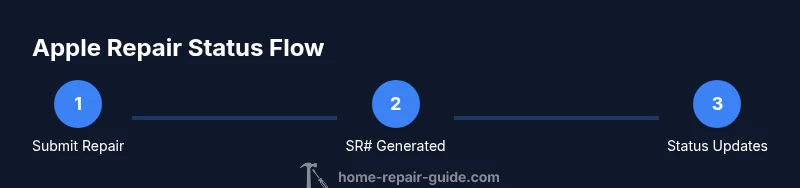
You can check your Apple repair status by visiting Apple Support's repair status page, entering your service request number (SR#) or Apple ID, and reviewing updates in your repair status timeline. You can also receive status notifications via email or the Apple Support app. If you don't have your SR#, contact Apple Support for help.
Understanding Repair Status for Apple Devices
When you submit a repair request for an Apple device, the process is tracked with a service request number (SR#) or a case ID. Checking the repair status lets you see what stage your device is in, whether parts are on order, if a technician has inspected the device, or if additional steps like diagnostics or data protection are required. The goal of the status updates is to give you a realistic timeline and a clear path forward. For the best experience, understand that Apple treats status signals as live data tied to your SR# and Apple ID, so stay logged in with the account you used for the repair submission. In practical terms, you’ll want to check status regularly when you’re coordinating storage, shipping, or onsite service with a repair center. This is especially helpful if you depend on your device for work or school, or if you’re planning a store pickup when the device is ready.
Where to Find Your SR# and Appointment Details
Your SR# is your primary link to watch progress. You’ll typically find it on the repair receipt or confirmation email you received after submitting the repair request. If you registered the device in your Apple ID account, you may also locate the SR# in your recent activity under the My Repairs section of Apple Support. If you can’t find the SR#, don’t panic—you can contact Apple Support and verify your identity to retrieve the correct case number. Always double-check the device serial number and model to ensure you’re tracking the right repair, especially if you’ve submitted multiple devices. Having the SR# handy reduces back-and-forth and speeds up updates.
The Repair Status Timeline: What Each Update Means
Apple’s repair status timeline typically includes several stages: Received, Diagnosed, Parts on Order, In Progress, Awaiting Parts, Testing, and Ready for Pickup or Shipped. Each label represents a concrete action, such as a technician reviewing the device or awaiting a replacement part. Time estimates vary based on parts availability, workload at the repair center, and shipping times. When you see an update, read the notes carefully—some updates include estimated completion dates, while others indicate pending information from you (for example, confirming data protection options or restoring settings). Keeping expectations aligned with these steps helps you plan around downtime.
Using the Apple Support App for Updates
The Apple Support app is a convenient way to monitor repair progress on the go. Open the app, sign in with the same Apple ID used for the repair, and navigate to the Repair Status or My Repairs section. The app usually pushes push notifications when the status changes, so you don’t need to check manually. You can review the latest notes, upcoming steps, and any required actions directly in the app. If you’re enrolled in AppleCare, you may also receive proactive advisories through the app about potential delays or service options.
Common Scenarios: Delays, Escalations, and Next Steps
Delays are common when parts are backordered or when human oversight is required. If you notice a sudden stall in updates, consider contacting Apple Support to request an escalation or a status refresh. In some cases, a supervisor or repair specialist may provide a more precise ETA or offer a replacement device as a temporary solution. When the device is ready for pickup, you’ll typically receive a final notification with pickup instructions, location, and required identification. For mail-in repairs, tracking may continue even after the device leaves the repair facility, so the last update might be a shipping confirmation.
What to Do If Status Isn’t Updating
If you’re not seeing any progress for an extended period, verify that you’re using the correct SR# and account. Check your spam or junk mail folder for status emails, and ensure notifications are enabled in the Apple Support app. If there’s no movement after 24–48 hours, contact Apple Support with your SR#, serial number, and a concise description of the issue. If you’ve already spoken to a representative, request a case number or escalation reference so you can follow up efficiently. Do not share your SR# in public forums; keep it within the official channels to avoid security risks.
Privacy, Security, and Data Access When Checking Status
Apple treats repair-related data as sensitive information. You should only access status from official channels: the Apple Support website, the Apple Support app, or verified phone support. Never provide your SR#, Apple ID credentials, or device serial number in unsecured emails or messages. If you’ve given someone else access to your account, review your trusted devices and login activity to ensure no unauthorized changes have occurred. When in doubt, contact Apple Support directly and request verification steps to protect your personal data.
Tools & Materials
- Stable internet connection(Wi-Fi or cellular data with good signal)
- Apple ID and password(Used to sign in and access the repair case)
- Service Request Number (SR#) or case ID(Found on repair receipt or confirmation email)
- Device serial number(Helpful for cross-checking case details)
- Access to Apple Support app(Optional for mobile status updates)
Steps
Estimated time: 15-25 minutes
- 1
Find your SR# and Apple ID
Locate the service request number (SR#) on your repair receipt or the confirmation email. If you registered the device with your Apple ID, ensure you’re signed into the same account to pull the correct case.
Tip: Keep SR# saved in a dedicated folder or note. - 2
Open the official repair status page
Navigate to the Apple Support repair status page and sign in with the Apple ID used for the repair. If you have the SR#, you can enter it directly to see the live updates.
Tip: Bookmark the page for quick future checks. - 3
Enter SR# or sign in to view status
Input the SR# or access your My Repairs section to reveal the most recent status, updates, and estimated completion. Ensure the device type matches the repair entry to avoid confusion.
Tip: Use the search feature in your browser for the SR# if you have multiple cases. - 4
Review updates and timelines
Read the latest notes carefully. Look for diagnostic results, parts on order, and any new ETA. Note if you need to provide additional information to move the repair forward.
Tip: Note any new ETA and set a reminder to re-check. - 5
Enable notifications
Turn on status notifications in the Apple Support app or email so you receive automatic updates without checking manually.
Tip: Ensure notifications aren’t blocked by your device settings. - 6
If progress stalls, contact support
If there’s no update for an extended period, contact Apple Support, provide your SR# and case details, and request escalation if needed to get a clearer ETA.
Tip: Request a supervisor or escalation reference for follow-up.
FAQ
Where can I find my SR# for an Apple repair?
The SR# is on the repair receipt or confirmation email. If you registered the device in your Apple ID account, you may also find it in the My Repairs section of Apple Support. If you can’t locate it, contact Apple Support with identifying details to retrieve the correct case.
Find the SR# on your repair receipt or in My Repairs in Apple Support. If you can’t locate it, contact Apple Support for help.
Can I check the repair status without the SR#?
You may sign in with your Apple ID and use the My Repairs section or any provided case IDs. If you don’t have a case ID, contact Apple Support to retrieve the correct tracking number tied to your device.
Yes, through your Apple ID in My Repairs, or contact Support to retrieve the case ID.
How often are status updates posted?
Status updates are posted when there is new progress or diagnostic information. In many cases you’ll see updates within 24–48 hours, but timelines can vary based on parts availability and center workload.
Updates appear when progress occurs, typically within 24 to 48 hours depending on parts and workload.
What if my device is at an Apple Store for pickup?
If your device is ready for pickup, the status will indicate Ready for Pickup or a similar store-specific notice. If it’s still in transit or awaiting parts, you’ll see the corresponding update in the timeline.
If ready, you’ll see Ready for Pickup; otherwise, watch the timeline for the latest stage.
Is there a way to get status updates via SMS?
Apple typically uses email or the Apple Support app for status notifications. SMS updates aren’t commonly provided through official channels. Rely on in-app or email alerts for reliability.
Updates usually come via email or the Apple Support app, not SMS.
What should I do if the status shows Delayed or no progress?
Contact Apple Support with your SR# and device details to request an escalation or a refreshed ETA. Keep notes of all updates and decisions for reference if you need to follow up.
If progress stalls, contact Support and ask for escalation with your SR# handy.
Watch Video
Key Takeaways
- Track repairs using the official SR# and Apple ID.
- Use the Apple Support app for real-time updates.
- Understand the status timeline to set realistic expectations.
- Escalate if updates stall to avoid delays.