How to Put Pixel in Repair Mode: Step-by-Step Guide
Learn how to put a Google Pixel into repair modes such as Recovery or Bootloader to diagnose issues, apply updates, or reset. This guide covers hardware key combos, ADB basics, safety tips, and next steps.


Learn how to put a Pixel phone into repair modes such as Recovery or Bootloader to run diagnostics, update software, or perform a factory reset. Start by powering off the device, then use the correct hardware button combination or an ADB command to access the mode you need. This quick guide covers model variations and safety steps.
What is repair mode on Pixel devices?
On Google Pixel devices, repair mode is not a single feature with a universal label. In practice, technicians and careful users interact with two core boot states: Recovery mode and the Bootloader (fastboot) mode. Recovery provides a minimal environment to apply official updates, wipe caches, or perform a factory reset, while Bootloader gives access to flashing system images or unlocking the device for service. According to Home Repair Guide, understanding these boot states helps you troubleshoot startup problems, recover from software corruption, or prepare a device for professional service. This distinction matters because each mode presents different options and safety implications, especially regarding data retention and security. The goal of repair-mode workflows is to restore functionality, resolve software glitches, or get the device ready for service without causing unnecessary damage. If you’re a homeowner or renter dealing with a Pixel that won’t boot or behaves erratically, knowing which mode to use saves time and reduces risk. By following model-aware guidance, you can keep data intact when possible and exit a mode cleanly once the issue is resolved.
Access pathways: Recovery, Bootloader, and ADB
Pixel repair workflows hinge on three doors: Recovery mode, Bootloader (fastboot) mode, and ADB-triggered actions. Recovery mode boots into a compact environment with its own on-screen options: reboot system now, apply update from ADB, apply update from SD card (not all models support this), wipe cache partition, and factory reset. Bootloader mode exposes a lower-level interface used to flash system images, unlock the device, or perform low-level diagnostics. ADB (Android Debug Bridge) provides a software bridge for advanced users to request a reboot into Recovery or sideload updates without using hardware key combos, once USB debugging is enabled. The right door depends on your objective: a quick recovery after a glitch, flashing an official update, or reimaging the device if it’s unresponsive. As Home Repair Guide notes, start with the least destructive option and back up data before proceeding. This section outlines model-agnostic methods to enter each mode, emphasizing safety prompts, verification steps, and the potential need for service if software-only fixes fail.
When to use repair mode
Using repair-mode workflows is appropriate in several scenarios. If the Pixel won’t boot, shows a boot loop, or stalls during startup, entering Recovery or Bootloader can help. If you need to install an official update that won’t install in normal mode, you can sideload via Recovery or use fastboot to flash a factory image. For hardware testing, such as speaker, microphone, or touchscreen diagnostics, Recovery mode provides a controlled environment that minimizes OS interference. If you’ve installed a suspicious app or malware, a factory reset through Recovery is often the most reliable option to restore a clean state. However, Recovery-only actions can wipe data; always back up first. For data protection, schedule a backup routine and ensure you understand which options preserve or erase data. By planning ahead, you limit downtime and avoid accidental data loss. Home Repair Guide’s approach emphasizes cautious, stepwise progression—never skip backups, verify power level, and halt if the device shows unexpected prompts or security locks during the process.
Step-by-step: what to expect when you enter repair mode
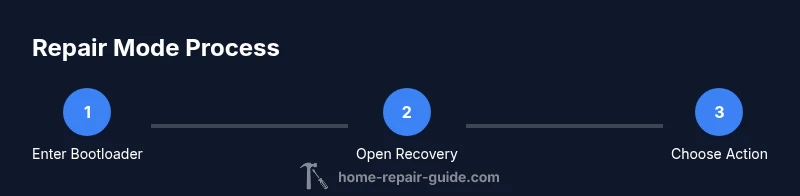
Entering repair modes follows a predictable flow, though exact prompts can vary by Pixel model. In general, you’ll prepare the device for the process, choose the mode you need, perform the operation, and then reboot back to the normal system. You’ll usually notice a bootloader screen, then a Recovery menu with navigation keys, and finally the system reboots. The exact options available in Recovery depend on the model and software version. If you choose to sideload an update via ADB, you’ll connect the phone to a computer with USB debugging enabled and transfer the update package. Expect occasional prompts about device compatibility, software signatures, or encryption. Throughout the process, keep the device connected to power and avoid forcing shutoffs—interrupting a repair action can leave the device in a half-flashed state. After completion, verify that the Pixel boots normally and that the issue is resolved before returning to daily use.
How to enter Recovery mode on a Pixel (high-level)
Here is a high-level view of the process for entering Recovery mode on a Pixel. Practically, you power down the device first, then trigger the system’s boot sequence for a recovery-capable state via a hardware key combination and, if necessary, a software flag. Once you reach the Recovery screen, you’ll navigate with the volume keys and select options with the power button. For some models, you may see an option labeled 'Apply update from ADB' or 'Wipe cache partition'—these are common recovery actions. If you use ADB, connect the Pixel to a computer and issue the correct commands; this path allows sideloading without using the device’s touch screen. Note that not all Pixels expose every Recovery option; capabilities vary by model and software build. As always, proceed carefully and avoid updating from unofficial sources to minimize risk of bricking the device. In all cases, have a backup and a plan to restore data if the operation doesn’t go as planned.
How to use ADB with Pixel repair mode
ADB is a powerful tool for repair workflows, but it requires setup and caution. Start by enabling Developer Options on the Pixel, turning on USB debugging, and installing the Android Platform-tools on your computer. Connect the Pixel with a USB cable and authorize the computer when prompted. With ADB ready, you can issue commands such as reboot recovery, sideload updates, or inspect system state with dumpsys in a non-destructive way. The ADB route is particularly useful when the device won’t navigate Recovery via touch, or when you need to apply an official update without a factory reset. Remember to verify the integrity and source of the update file before sideloading, and use a trusted USB port and cable to prevent data corruption during transfer. If anything feels unclear, consult official Google developer resources rather than venturing into uncertain commands. Public tutorials can help, but rely on verified sources and double-check the device model and software version before executing commands.
Safety and data considerations before entering repair mode
Safety and data protection should guide every repair-mode decision. Make sure the Pixel is charged or connected to power, ideally above 50%. Back up important data to the cloud or an offline drive since factory resets erase local data. Understand that certain Recovery options wipe data (factory reset) while others preserve it (wipe cache). If you use ADB, ensure USB debugging is disabled after you’re done to reduce exposure. To minimize risk, validate your model and software version against official documentation, and avoid unofficial firmware. Protective gear isn’t usually necessary for Pixel repair, but a clean, dry workspace and static-safe handling reduce the risk of electrical damage. Finally, if the device carries a recall or known issue with your model, check warranty coverage or service options before attempting aggressive repairs.
Model variations and caveats
Pixel lineups vary by generation; Recovery and Bootloader behaviors can differ slightly between Pixel 5, Pixel 6, Pixel 7, or Pixel 8. Some models support sideloading, while others may restrict certain update methods. Certain devices encrypt data at rest and require proper authentication to boot after a repair action. If the device is carrier-locked, you may face additional prompts or restrictions. Always consult model-specific guides and the official Google support documentation for your exact phone. Home Repair Guide recommends verifying the model number and software build before proceeding, then following a model-appropriate sequence to minimize risk of data loss or brick events. When in doubt, pause and seek professional repair services.
Next steps after repair mode and professional help
Completing a repair-mode workflow is not always the end of the journey. If recovery actions restore normal operation, perform a quick health check: run a quick battery test, speaker/mic tests, and screen responsiveness tests. If problems persist after Recovery, consider reimaging the device through the bootloader with an official factory image or seek professional service from Google Support or a licensed service provider. Retain any logs or screenshots from the Recovery console for reference. For ongoing safety, maintain current backups and enable device encryption where possible. The Home Repair Guide team emphasizes clear documentation and following official guides to ensure the device remains secure and functional. If the issue appears hardware-related, prioritize a service appointment rather than repeated software attempts.
Tools & Materials
- Google Pixel device(Any Pixel model supported for Recovery/Bootloader access)
- USB-C cable(For USB debugging or sideloading updates)
- Computer with ADB platform-tools(Windows/Mac/Linux; install from Google's official site)
- Charge/power source(Keep device above 50% to prevent shutdown mid-operation)
- Backup storage(Cloud backup or local drive to save data before reset)
- Safe working space(Static-free area, dry and clean; use anti-static wrist strap if available)
Steps
Estimated time: 10-15 minutes
- 1
Power off the Pixel
Ensure the device is completely shut down. A clean power-off reduces the risk of entering an incorrect mode and prevents partial state corruption during the boot sequence.
Tip: If the device is unresponsive, hold the power button for 10-15 seconds to force power down. - 2
Enter bootloader mode
Press and hold the hardware key combination (typically Power + Volume Down) to bring up the bootloader screen. This loads a minimal, low-level menu from which other repair modes can be chosen.
Tip: If your model uses a different combo, check the exact keys in the manufacturer’s guide; proceed only if you see a bootloader screen. - 3
Navigate to Recovery
Use the volume keys to highlight Recovery and press the power button to select it. This boots the Pixel into Recovery mode with its own set of options.
Tip: In some models, Recovery might start automatically after selecting it from the bootloader. - 4
Choose a Recovery action
From the Recovery menu, scroll to options like 'Apply update from ADB' or 'Wipe cache partition' and select with the power button. These are common, non-destructive to data options, and can resolve many issues.
Tip: Wipe cache partition preserves data, while factory reset does erase data; confirm what you select. - 5
If needed, use ADB to reboot or sideload
Connect the Pixel to your computer and/or issue adb commands such as reboot recovery or sideload to apply an update. This provides a software-based path when you can’t interact with the device via touch.
Tip: Only run updates from verified sources; sideloading from an untrusted file can harm the device. - 6
Exit Recovery
After completing the intended action, select 'Reboot system now' to leave Recovery and return to normal operation. Verify the device starts up normally and the issue is resolved.
Tip: If the device stalls, repeat the steps carefully or seek professional assistance.
FAQ
Is repair mode an official Google feature, or a generic term?
Repair mode is not a single official feature with that label. In Pixel devices, the practical options are Recovery mode and Bootloader. They serve diagnostic, update, and reimage purposes depending on the problem.
Repair mode isn’t a single feature; use Recovery or Bootloader to diagnose or repair Pixel devices.
Can I lose data by entering repair mode?
Factory resets erase data. Wiping caches generally preserves data. Always back up before performing any operation that might reset or reimage the device.
Back up before any factory reset; caches-wiping usually preserves data.
What if my Pixel won’t boot into any mode?
If the device is stuck, try a hard power-off, charge, then attempt bootloader or recovery again. If none work, contact Google Support or a licensed service provider for diagnostics.
If it won’t boot, try power, charge, and retry modes; otherwise seek professional help.
Do I need Developer Options or ADB to use Recovery?
No. Recovery and Bootloader can be used with hardware buttons. ADB is optional for advanced users, mainly for sideloading or reboot commands.
ADB isn’t required for recovery; hardware buttons work, but ADB helps advanced users.
How long does a repair-mode process typically take?
MostRepair-mode tasks take about 5-15 minutes, depending on the operation. Complex updates or reimaging can take longer, especially when data transfer is involved.
Most tasks take 5-15 minutes, longer if reimaging or large data transfers are involved.
Watch Video
Key Takeaways
- Backup data before factory resets
- Recovery and Bootloader are for diagnostics and safe operations
- Avoid unofficial firmware to prevent bricking
- ADB is powerful but should be used cautiously
- Consult official guides or support if unsure