HP Computer Repair: A Practical How-To Guide for HP PCs
Learn practical, safety-first HP computer repair techniques with Home Repair Guide. This comprehensive guide covers diagnostics, safe component handling, and know-how on deciding when to seek professional help.


This guide delivers a practical, step-by-step approach to diagnosing and repairing common HP computer issues, with a strong emphasis on safety, data protection, and clear decision points about when to seek professional help. You will learn how to identify symptoms, gather the right tools, and execute safe repairs that extend the life of your HP device.
Common HP repair scenarios\n\nHP computers commonly encounter a handful of recurring issues that may be resolved with guided troubleshooting. Symptoms include failure to boot, blue screen errors, random shutdowns, overheating, loud fans, degraded battery life, keyboard or touchpad issues, and driver conflicts after OS updates. In many cases the root cause is a loose connection, a failing module, or software corruption rather than a full hardware failure. This guide from Home Repair Guide provides practical, safety-minded steps to diagnose and address computer repair hp tasks, helping homeowners and renters avoid unnecessary replacements. By learning to observe symptoms and note error messages, you can triage quickly and reduce downtime. The approach works across HP laptops and desktops because the core repair logic revolves around inspection, testing, and documentation rather than model-specific parts. As you gain experience, you can apply the same diagnostic mindset to other devices in your home repair toolkit.\n\n
Safety and workspace setup for HP repair work\n\nBefore touching any computer, power down completely, unplug all cables, and remove the battery if possible. Ground yourself with an anti static strap or mat to prevent electrostatic discharge that can damage delicate components. Work on a clean, well-lit surface that is non-conductive and free from liquids. Keep all screws and tiny parts in labeled containers to avoid mix-ups during reassembly. Wearing eye protection is prudent when handling fans or cooling systems. A disciplined, safety-first approach reduces risk and promotes durable results in computer repair hp tasks.\n\n
Tools and environment you will need\n\nA reliable workstation makes HP repair work smoother. Core tools include a magnetized Phillips screwdriver set (PH0 and PH1), a flat head screwdriver for prying if needed, precision torx drivers for some models, an anti static wrist strap, a plastic spudger, and insulated tweezers. Have isopropyl alcohol (90% or higher) and lint-free microfiber cloths for cleaning. A small container or tray helps organize screws. If you plan to upgrade RAM or storage, include compatible modules and a USB drive for backups or testing. Maintain an organized environment so you can locate tools quickly and correctly identify components during computer repair hp tasks.\n\n
Diagnostic approach: software first, hardware second\n\nBegin with software diagnostics before opening the chassis. Use Windows built in tools such as sfc /scannow, DISM, and Windows Memory Diagnostic to identify software or memory issues that may masquerade as hardware failures. Check BIOS or UEFI settings, verify the boot order, and ensure firmware and drivers are up to date from official sources. HP support resources reinforce this software-first strategy to minimize unnecessary hardware handling. If the problem persists after software remediation, advance to hardware diagnostics with a controlled, methodical process. According to Home Repair Guide, software-first diagnostics reduce risk and save time.\n\n
Safe data handling and backup strategies\n\nData safety is a priority during any computer repair hp task. Create a full backup of important files before opening the device, using an external drive or cloud backup as appropriate. If the device cannot boot, prepare a recovery USB to clone or recover data. After backing up, verify that files can be restored and test the backup mechanism. This reduces the risk of data loss during repair and gives you a reliable safety net as you test hardware components. Home Repair Guide emphasizes that a robust backup plan is the best defense against catastrophic damage.\n\n
Replacing common components: RAM, storage, and cooling\n\nMany HP models respond well to modest hardware changes. RAM upgrades or reseating modules can improve performance if the modules are compatible and seated correctly. Replacing a failed hard drive or upgrading to an SSD can dramatically boost responsiveness. When removing dust from heatsinks and fans, avoid bending delicate fins; use a soft brush and compressed air if available. Reapply thermal paste only if you are experienced with CPU/GPU cooling, and ensure the heat sink is properly seated. Power down and unplug before any component replacement and verify all connectors are secure after reassembly. These upgrades can restore performance and extend the device life when done carefully and with proper tools.\n\n
BIOS/firmware updates, maintenance, and when to seek professional help\n\nBIOS and firmware updates can resolve compatibility issues and improve stability, but they should be performed with caution. Always use official sources from HP or the device maker and ensure the device has a stable power supply during the update. If a BIOS update fails or the device does not boot afterward, consult HP support or a professional service to avoid potentially bricking the motherboard. Regular maintenance includes software updates, disk health checks, and cleanup, which can prevent future problems. If you encounter any signs of physical damage, fluid exposure, or unresolved symptoms after following the steps in this guide, it is wise to seek professional help. The right decision aligns with warranty terms and cost considerations, which HP support recommendations help you evaluate.\n\n
Planning next steps and ongoing maintenance\n\nAfter completing a repair hp task, create a short maintenance plan that includes regular software updates, periodic hardware checks, and backups. Consider setting up a monthly check of disk health and temperature monitoring to catch issues early. Adopting simple habits like dusting the chassis and keeping software clean helps extend the life of HP computers and reduces the likelihood of repeat issues. Home Repair Guide recommends documenting repairs and updating recovery media so you are prepared for future issues.\n\n
Tools & Materials
- anti-static wrist strap(Essential to prevent ESD damage when handling internal parts)
- ESD mat(Optional but helpful for static control)
- Phillips screwdriver set (PH0, PH1)(Standard for most laptop and desktop screws)
- Flat-head precision screwdriver(Useful for boundary cases)
- Torx screwdriver set (T5, T6)(Needed for some HP models)
- spudger tool(Plastic tool to avoid connector damage)
- tweezers with insulated tips(Small components handling)
- isopropyl alcohol (90%+)(For cleaning contacts and boards)
- lint-free microfiber cloth(Avoid fibers that shed dust)
- thermal paste(Only if reseating CPU/GPU cooler)
- replacement RAM module(Only if upgrading or reseating)
- replacement SSD/HDD(Only if upgrading or replacing drive)
- external USB drive or enclosure(For backups and testing)
Steps
Estimated time: 45-90 minutes
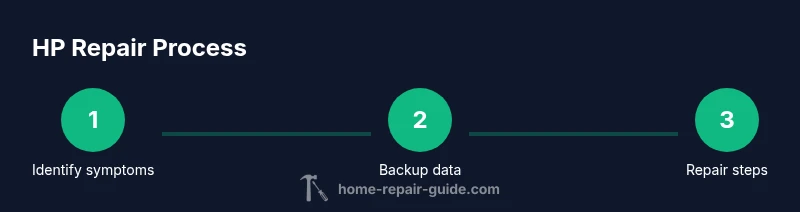
- 1
Identify symptoms
List observed issues and note error messages. Record reboot behavior and any pattern to failures. This helps distinguish software from hardware causes and prevents unnecessary disassembly.
Tip: Document exact error messages and when they occur. - 2
Back up data
Create a verified backup of critical files before opening the device. If the device cannot boot, prepare a recovery drive or clone the disk to an external medium.
Tip: Verify restore from the backup before proceeding. - 3
Power down and unplug
Shut down, unplug all cables, and remove the battery if possible. Ground yourself and prepare the workspace to minimize risk of short circuits.
Tip: Work on a non-conductive surface. - 4
Inspect for loose connections
Check RAM, storage, and cable connections. Reseat components firmly but gently, and reseat any cables that look loose or worn.
Tip: Always reseat in increments to locate a flaky connection. - 5
Test components incrementally
Test RAM, storage, and cooling components one at a time to identify the culprit. Use built-in diagnostics where available.
Tip: Run a memory test and drive health check if possible. - 6
Reassemble and test
Carefully reassemble the device and boot to verify operation. Monitor temperatures and stability for a period to confirm the repair.
Tip: Keep spare screws organized and label steps.
FAQ
What is the first thing I should do before attempting HP computer repair?
Back up data and document symptoms before opening the device. This protects your files and helps you track what changes you make during repair.
Back up your data first and note the symptoms you observe.
Can I repair an HP laptop myself, or should I always go to a professional?
Many basic issues can be addressed by homeowners with the right tools and safety practices. Complex problems or warranty concerns may require professional service.
DIY is possible for basic issues; seek pro help for complex problems or warranties.
What tools are essential for HP computer repair at home?
A safe workspace, anti static gear, precision screwdrivers, spudger, alcohol, and lint-free cloth are the core toolkit. Add RAM or SSD if you are performing upgrades.
You need a safe workspace, anti static gear, precision screwdrivers, and cleaning supplies.
Is updating BIOS or firmware risky?
BIOS updates should be done only from official sources and with stable power. Interruptions can brick the motherboard, so proceed carefully.
BIOS updates must be from official sources and performed with stable power.
What should I do if the HP computer still fails after repair?
Revisit software diagnostics, check for driver conflicts, and consider professional assessment if issues persist. Ensure data backup remains intact.
If problems persist, recheck software and drivers or seek professional help.
How long do HP BIOS or firmware updates take?
Update duration varies by model but generally takes a few minutes. Do not interrupt the process once it starts to avoid bricking the device.
BIOS updates typically take a few minutes; do not interrupt.
Watch Video
Key Takeaways
- Start with software checks before hardware work
- Back up data prior to any repair
- Use proper anti static safety practices
- Reseat or replace components only if you are confident
- Know when professional service is warranted