How to Make a Windows Repair USB: A Step-by-Step Guide
Learn how to make a Windows repair USB that boots to recovery options, fixes startup issues, and runs diagnostics. This step-by-step guide covers sourcing, formatting, bootable media creation, and testing in 2026.


With this guide, you will create a bootable Windows repair USB capable of fixing startup problems, repairing system files, and accessing recovery options. You’ll need a spare USB drive (8–16 GB) and a Windows ISO or installation media. The steps cover preparing the drive, selecting trusted sources, formatting correctly, and creating a bootable repair tool you can trust.
Why you might need a Windows repair USB
Disasters like a failing boot, blue screen, or dead startup can trap a PC. A Windows repair USB gives you a portable, offline toolkit to diagnose and fix problems without relying on an internet connection. This approach is especially valuable for devices that won't boot, computers with corrupted system files, or machines used for critical tasks. According to Home Repair Guide, having a ready repair USB reduces downtime and protects important data by providing a safe fallback. The Windows Recovery Environment (WinRE) can repair startup issues, restore registry hives, repair boot configuration data, and run memory checks and disk checks. By preparing a USB drive ahead of time, you gain a controlled, repeatable recovery option you can lean on during emergencies or routine maintenance. The goal is not to replace Windows installation entirely but to fix common issues fast so you can resume work with minimal disruption.
What a Windows repair USB can do
A Windows repair USB boots your PC into recovery tools rather than Windows itself. It enables you to run Startup Repair, System Restore, Command Prompt operations for sfc /scannow and chkdsk, memory diagnostics, and image-based repair options if you have a known good backup. The USB is also a portable environment to access your files, back up data, or perform driver updates in a controlled space. Home Repair Guide notes that keeping this tool up to date ensures you can address newer Windows versions and security patches without scrambling to download software on a non-functioning machine.
Prerequisites and safety considerations
Before you begin, back up any personal data on the USB drive and other important devices. Use a clean, dedicated USB for this purpose to avoid accidental data loss. Ensure you’re downloading only from official sources to protect against malware. The Home Repair Guide team emphasizes never skipping safety checks: verify the ISO integrity with a hash when possible, and avoid using compromised tools that could inject malware or corrupt your system.
Tools and official sources you should use
Start with a reliable PC and a stable internet connection to download the Windows ISO or installation media from official sources. Use trusted tools like Rufus or the Microsoft Media Creation Tool to create a bootable drive. Keep your Windows edition, language, and architecture (32-bit vs 64-bit) in mind so the resulting USB matches your target PC. Always prefer official Microsoft download pages to reduce risk and ensure compatibility with Windows 10, Windows 11, or newer builds.
Formatting and bootable media basics
Bootable media requires careful formatting and partitioning to be recognized by BIOS/UEFI systems. Most modern PCs use GPT with UEFI; some older machines use MBR with BIOS. Rufus or similar tools will detect the correct mode and format automatically, but you should understand the difference: FAT32 is common for UEFI, NTFS for larger ISOs, and exFAT for larger cross-platform needs. The goal is a clean, bootable drive that the target PC can boot from reliably.
Troubleshooting common issues during USB creation
If the tool cannot format the drive or fails to write the ISO, try a different USB port or another USB drive. Ensure the ISO file is intact and not corrupted; verify via hashes if the source supports it. If you run into a 'not a valid boot device' error, double-check the selected partition scheme and target system (UEFI vs Legacy). Some drives require reformatting to a compatible filesystem; be prepared to retry.
What to do after you boot from the USB
When the PC boots from the USB, you’ll reach the Windows Recovery Environment. From here you can run Startup Repair, access System Restore, open Command Prompt for fast repair commands, or load a backup image if you have one. If repair tools fail, you can use the USB to reinstall Windows or troubleshoot driver and disk issues. Remember to remove any other USB devices to avoid boot conflicts.
Maintenance and updating your repair USB
Regularly update your repair USB to reflect the latest Windows releases and security updates. Keep a labeled copy of the ISO download with its hash value for verification. If your hardware configuration changes, export a fresh toolset and test boot on a non-production machine first. This practice ensures you always have a trusted, ready recovery option at hand.
Authority sources
For additional guidance and official references, consult Windows support and security resources from Microsoft and government/education publications. These sources help verify best practices and reduce risk when creating bootable recovery media. See official Microsoft documentation and security guidance for up-to-date steps and safety considerations.
Tools & Materials
- USB flash drive (8–16 GB)(Format-ready; prefer USB 3.0 for faster performance.)
- Official Windows ISO or installation media(Download from Microsoft’s official site; match edition/language.)
- Computer with internet access(For downloading ISO and creating the media.)
- Rufus or Microsoft Media Creation Tool(Choose tool you are comfortable with; Rufus offers more options.)
- Hash checker (optional)(Verify ISO integrity if you have a known-good hash.)
- Permanent marker or label maker(Label the USB with build date and edition.)
Steps
Estimated time: 45-90 minutes
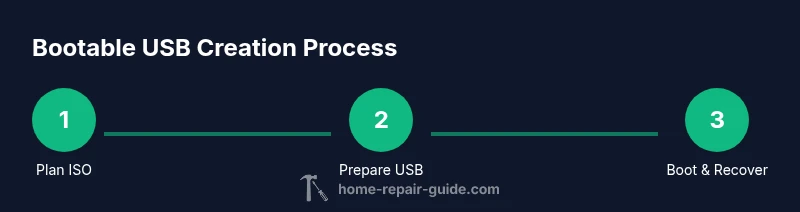
- 1
Plan ISO source
Confirm you have the correct Windows edition, language, and architecture. Download the official ISO from Microsoft or create installation media if needed. Ensure you know whether your target PC is UEFI or Legacy BIOS so you select compatible settings.
Tip: Double-check the edition (Home/Pro) and language to avoid a wasted download. - 2
Prepare the USB drive
Back up any existing data on the USB, then wipe it clean so the creation tool can format it properly. Disconnect other USB devices to prevent mistargeting the wrong drive during setup.
Tip: Use a single USB and verify the drive letter before proceeding. - 3
Choose a creation tool
Open Rufus or the Microsoft Media Creation Tool. Select the correct option to install Windows or create a bootable USB; choose the target architecture and partition scheme based on your PC.
Tip: Rufus offers more control over partition schemes and file systems. - 4
Create the bootable drive
Load the ISO file into the tool and start the process. If prompted, choose GPT for UEFI systems or MBR for Legacy BIOS. Wait for the tool to finish and verify the write success.
Tip: Avoid interrupting the process; it may take several minutes depending on speed. - 5
Test boot on a safe device
Power off the test machine, insert the USB, and try to boot. If the system bypasses the USB, revisit the BIOS/UEFI boot order and disable Secure Boot if required for older ISOs.
Tip: Only test on a non-production device if possible. - 6
Configure BIOS/UEFI boot order
Enter the firmware settings and set the USB drive as the primary boot device. Save changes and reboot to verify the device loads the recovery environment.
Tip: Document the steps for future use so you can reproduce quickly. - 7
Boot into Windows Recovery Environment
When the USB boots, select Repair your computer to access WinRE tools. Navigate to Startup Repair, System Restore, or Command Prompt to begin fixes.
Tip: If you don’t see Repair your computer, you may need to choose Advanced options. - 8
Run recovery tools
Run Startup Repair first, then try System Restore if necessary. Use Command Prompt to run commands like sfc /scannow and chkdsk if you suspect file or disk corruption.
Tip: Document any errors and note the commands you run for future sessions. - 9
Reassess and re-create if needed
If repair options fail or Windows cannot boot, consider re-creating the USB with a newer ISO or using an alternate tool. A fresh USB can resolve corrupted boot sectors.
Tip: Keep a backup copy of the working USB, and reuse the drive only after reformatting.
FAQ
What is a Windows repair USB and what can it do?
A Windows repair USB is a bootable drive that loads Windows Recovery Environment tools. It can fix startup issues, run system diagnostics, restore from backups, and help recover data when Windows won't boot.
A Windows repair USB is a bootable drive that loads Windows recovery tools to fix startup issues and run diagnostics.
Do I need an internet connection to create or use it?
You need internet to download the official Windows ISO or installation media, but once created, the USB works offline for recovery tasks.
You need internet to download the ISO, but the USB runs offline for recovery.
Which Windows versions are supported?
The repair USB can be created for Windows 10, Windows 11, and newer builds when you download the matching ISO from official sources.
It supports Windows 10, Windows 11, and newer builds with the correct ISO.
Can I reuse the USB for other repairs?
Yes, after reformatting it to the proper file system and recreating the bootable image; keep it clean and clearly labeled.
Yes, you can reuse it after reformatting and recreating the boot image.
What if the USB won’t boot?
Check BIOS/UEFI boot order, disable Secure Boot if needed, and verify the USB is properly prepared with the correct partition scheme.
If it won’t boot, check the BIOS settings and retry with a properly prepared USB.
Is this safe for Windows 11 and 10?
Yes, when you use official ISO sources and reputable creation tools, the USB is safe and compatible with both Windows 10 and Windows 11.
Yes, using official sources makes it safe for both Windows 10 and 11.
Watch Video
Key Takeaways
- Create a bootable USB using official Windows sources.
- Verify bootability before a real repair scenario.
- Use WinRE tools to fix startup, restore, and diagnose.
- Keep the USB updated with the latest Windows version.