How to Repair a Phone: A Step-by-Step DIY Guide
Learn safe, practical steps to diagnose and repair common phone issues at home. This Home Repair Guide tutorial covers tools, safety, and a step-by-step process for screen, battery, and charging problems.


Diagnose first, power down, then gather the right tools. Follow a safe, step-by-step repair for common issues like battery, screen, and charging faults, then test thoroughly before reassembly. See our detailed guide for the full process.
Why repairing a phone matters
Smartphones are essential tools, yet repairs can be cost-effective and eco-friendly. According to Home Repair Guide, repairing phones reduces e-waste and saves money compared with buying a new device. When a phone stops working, many homeowners assume replacement is the only option, but many faults are repairable with basic tools and careful technique. This block will help you decide when to attempt a repair and how to approach it safely. The Home Repair Guide team emphasizes that starting with a clear diagnosis saves time and prevents unnecessary dissassembly. We’ll outline typical faults, how to verify them, and what you can realistically fix yourself versus what should be handled by a pro; for many issues, a well-executed at-home repair preserves data and extends the device’s life. Before you begin, consider value, age, and parts availability. Batteries and displays are the most common failure points, these parts are widely available, and replacement procedures are well-documented in reputable sources. By choosing to repair rather than replace, you’ll learn valuable skills and reduce landfill waste, all while keeping your device functioning. This mindset aligns with responsible home maintenance and practical problem solving for busy homeowners and renters.
Common phone issues and quick checks
Phones fail for many reasons, yet most symptoms cluster around a few components. Battery life fades with age, the screen may become unresponsive, charging ports can loosen, speakers can distort, cameras may lose focus, or water exposure can corrode internal contacts. A quick, repeatable diagnostic helps you plan the repair. Start by noting when the fault occurs (during charging, after a drop, or after a software update) and whether the symptom is repeatable in safe mode. Check basic software health: update to the latest OS, clear cache, and run built-in diagnostics if available. Examine charging behavior: does the phone charge slowly, intermittently, or not at all? If the battery drains rapidly, run a battery health check and compare with expected lifespan. If the screen is unresponsive, test with an external tool, if possible, and check for flex-cable damage. Water exposure requires immediate drying steps and professional assessment if corrosion is suspected. Some issues can be resolved with simple resets or software fixes, while others require hardware replacement. To decide your path, consider whether parts are readily available and whether the device’s age justifies investment. After diagnosing, log the fault, plan the repair, and prepare your workspace accordingly.
Tools, parts, and safety considerations
A safe, effective at-home phone repair starts with the right toolkit and a controlled workspace. Prepare an anti-static mat or a clean, non-static surface, a small parts organizer, good lighting, and a camera or notes to document the teardown. Some repairs require specialized precision tools, including tiny screwdrivers and plastic spudgers. Always work on a static-free surface and remove jewelry that could short components. For safety, unplug the device and power it down before opening. Keep a magnetized tray away from the logic board, and never use metal tools around internal connectors unless you know their orientation. When replacing parts, source quality OEM or reputable third-party components with warranties. Battery replacements require careful handling: avoid puncturing the cell, and dispose of old batteries properly. Protective gear, such as safety glasses and gloves, can minimize risk when prying or lifting screens. If you’re unsure about a part’s compatibility, consult the device’s service manual or reputable repair guides. Finally, ensure you can return or exchange parts if your first choice doesn’t fit. A well-planned toolkit, thoughtful safety, and reputable parts are essential to a successful repair.
Step-by-step repair workflow
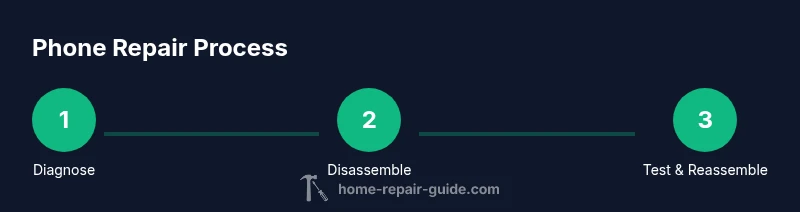
In this section we outline the general workflow you’ll follow for most hardware issues. Start with diagnosis, then disassembly, component replacement, reassembly, and final testing. Always keep track of screws and connectors, and photograph each stage to help with reassembly. After you complete each stage, test essential functions, such as power, touch response, camera, and charging. If a fault persists after replacement, revisit the diagnosis and confirm there aren’t secondary issues like water damage or software faults. By following a disciplined workflow, you can reduce risk and increase the odds of a successful repair. The detailed, step-by-step instructions appear in the dedicated STEP-BY-STEP block.
Troubleshooting and when to replace rather than repair
Not every phone repair is worth the time or cost. If the device is aging past its expected lifespan, or if multiple major components require replacement, evaluate the cost against a replacement. Warranty status matters: if the device is under warranty, professional service may be preferable. Some repairs may compromise water resistance or structural integrity if not done perfectly. In those cases, repairing may not be sensible. For water damage, if corrosion is present, professional assessment is recommended. The decision to repair should balance data safety, potential performance gains, and long-term reliability. When in doubt, test preliminary alternatives (software resets, diagnostic tools) before committing to a full hardware replacement. This approach aligns with Home Repair Guide’s ethos of practical, responsible home maintenance.
How Home Repair Guide supports safe, reliable repairs
Home Repair Guide stands for practical, proven guidance homeowners and renters can trust. Our step-by-step tutorials emphasize safety, tool selection, and reliable parts sourcing. We encourage readers to document every disassembly step, follow proper anti-static procedures, and pause if any risk appears. By combining clear, human-friendly explanations with cautionary tips, we help you build confidence to tackle common smartphone faults. Our guidance also highlights when a repair should be left to professionals, ensuring you avoid unsafe or warranty-voiding work. Throughout, Home Repair Guide’s aim is to empower safe, durable fixes that extend device life and reduce electronic waste.
Tools & Materials
- Phillips screwdriver #000(Small electronics screws; keep track of different lengths)
- Pentalobe/Torx precision screwdriver(Proprietary screws may be used by some brands)
- Spudger (anti-static)(Plastic tool for safe separation of components)
- Opening picks (polycarbonate)(Thin, non-marring tips to slide between panels)
- Suction cup(Helps lift glass panels without cracking them)
- ESD-safe wrist strap(Prevent static damage to circuitry)
- Tweezers(Precision handling of connectors and small parts)
- Replacement parts (battery, screen, charging port)(Only if you are replacing that component; verify compatibility)
- Isopropyl alcohol 99%(Clean contacts and remove adhesive residue)
- Adhesive strips/quality tapes(New strips for resealing the chassis)
- Magnetic mat or labeled containers(Keep screws organized during disassembly)
Steps
Estimated time: 60-120 minutes
- 1
Power down and prep
Power off the phone completely, remove the SIM tray if accessible, and place the device on a clean, static-free surface. Photograph the device from multiple angles to aid reassembly. This reduces the risk of losing connectors or misplacing screws.
Tip: Take a high-resolution photo of each stage before disconnecting cables. - 2
Open chassis safely
Apply a suction cup to the screen assembly (where applicable) and insert opening picks to separate the glass from the frame. Work slowly and methodically to prevent flex cable damage.
Tip: Work in small increments; never force panels apart. - 3
Disconnect battery and peripherals
Carefully locate and disconnect the battery connector and any flex cables using a spudger. Keep track of each connector’s orientation for reassembly and avoid bending flex circuits.
Tip: Label connectors with painter’s tape if needed. - 4
Inspect and identify the faulty component
Visually inspect the suspected part (battery, screen, charging port) for swelling, cracks, or corrosion. If possible, run basic functional tests or consult the device’s diagnostics to confirm the fault.
Tip: If in doubt, test the part on another compatible unit or seek professional validation. - 5
Replace the faulty part
Install the new component, ensuring correct alignment and secure connectors. Use appropriate adhesive where required and verify that any thermal or flex connections are properly seated.
Tip: Do not over-tighten screws; re-check connector seating before closing. - 6
Reassemble and test
Reassemble the device in reverse order, boot the phone, and perform a full set of tests: power-on, touchscreen, camera, speaker, microphone, charging, and battery life. Confirm no new issues appear.
Tip: Test with a charger and a known-good cable; look for heat during initial boot.
FAQ
Can I repair at home?
Yes, many common issues can be repaired at home with basic tools and careful steps. Start with safe diagnostics, use proper safety gear, and know when to stop and seek professional help for complex faults.
Yes, you can repair many common issues at home if you follow steps carefully and stay safe.
Do I need special tools?
A basic precision toolset and anti-static gear are enough for most repairs. Some devices may require brand-specific screws; have a set of small screwdrivers and plastic opening tools ready.
A small precision toolset is usually enough for most repairs.
Is it safe to replace a battery myself?
Battery replacement can be safe with the right tools and precautions. Do not puncture the cell, follow manufacturer guidance, and dispose of old batteries properly.
Battery swaps can be safe if you’re careful and use proper safety steps.
Will repairing void my warranty?
Repairing at home can void warranties if the manufacturer terms restrict self-service or if the repair damages critical components. Check your warranty or Apple/Android service terms before proceeding.
Self-repairs can affect your warranty; check terms first.
How long does a typical repair take?
A simple battery or screen replacement usually takes about an hour or two, depending on model and your familiarity with the process.
Most fixes take under a few hours, depending on the parts and model.
Should I attempt water-damage repair?
Water-damage repairs are high-risk and often require professional assessment. If corrosion is present, seek expert help promptly to minimize further damage.
Water damage is tricky; consider professional help if corrosion is involved.
Watch Video
Key Takeaways
- Diagnose before disassembly
- Keep screws organized and labeled
- Use proper anti-static precautions
- Test thoroughly after reassembly