Repair Apple Watch Pairing with iPhone: A Practical Step-by-Step Guide
Learn how to repair the Apple Watch to iPhone pairing with a step-by-step guide. Unpair, re-pair, update software, and verify Bluetooth and Activation Lock to restore reliable syncing between devices.


To repair the Apple Watch-to-iPhone pairing, unpair and re-pair the devices, update both iOS and watchOS, and verify Bluetooth, iCloud, and Activation Lock settings. This guide provides a clear, step-by-step process to fix common syncing failures, notification delivery problems, and app connectivity so your watch and iPhone stay reliably paired and ready for workouts, messages, and health tracking.
Understanding the Apple Watch–
Common causes of Apple Watch pairing failures
Pairing failures happen for several reasons, and knowing the common culprits helps you target the fix quickly. The most frequent causes include outdated software on either device, Activation Lock being enabled, weak or interrupted Bluetooth connections, missing or invalid Apple ID authentication, and temporary account issues with
Preparation: what you should do before you start
Before you begin the repair process, gather the essentials and prepare your environment. Ensure both devices are charged or connected to power, and have reliable Wi‑Fi access if you’ll need to sign in to
The repair workflow: unpair, update, and re-pair
The repair workflow for Apple Watch pairing follows a predictable cycle: unpair the watch from the
Step-by-step overview for unpairing and re-pairing
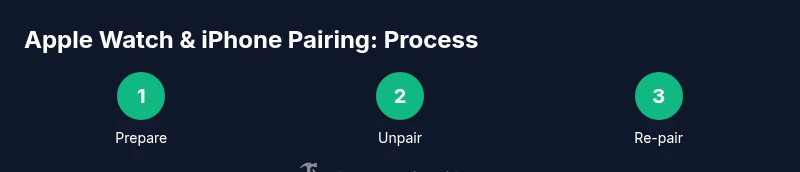
This section provides a high-level outline of the repair process. You will: 1) prepare devices and back up data, 2) unpair Apple Watch from
Verifying after pairing: tests and fine-tuning
After re-pairing, run a quick verification to ensure all systems are functioning. Check that notifications appear on the watch, confirm that Health data is syncing with the Health app, and test a few apps that use watch data. Toggle features like Heart Rate, Activity, and Siri to confirm responsiveness. If something doesn’t work, re-check Bluetooth and
Troubleshooting persistent issues and advanced fixes
If standard unpair/re-pair does not fix the problem, there are a few deeper fixes to try. Check Activation Lock status and sign-in to the Apple ID used on the
Maintenance tips to keep pairing reliable
To keep pairing reliable over time, perform regular software updates, maintain charged devices, and monitor
Tools & Materials
- iPhone with latest iOS(Charge level at least 50% before starting; stable internet connection recommended for updates/backups.)
- Apple Watch with charge(Ensure at least 50% battery; keep on charger if possible during unpair/re-pair.)
- Charger and watch charging puck(Have ready to keep watch powered during the process.)
- Apple ID credentials(You may need to sign in or reauthenticate during setup.)
- Stable Wi‑Fi or cellular connection on iPhone(Needed for updates, backups, and iCloud sign-in.)
- Backup-ready iPhone(Unpairing creates a backup automatically; having a recent backup helps restore data.)
Steps
Estimated time: Total time: 25-40 minutes
- 1
Prepare devices and credentials
Charge both devices and gather essential credentials (Apple ID and password). Ensure the iPhone has a stable internet connection and is within reach of the Watch. This first step reduces interruptions during the unpair and re-pair process.
Tip: Charge levels above 50% on both devices before starting to minimize power-related interruptions. - 2
Unpair the Apple Watch from iPhone
Open the Watch app on the iPhone, select your watch, and choose Unpair Apple Watch. The iPhone will automatically back up watch data before erasing, which helps you restore settings after re-pair.
Tip: The unpair action creates a backup on the iPhone—don’t skip this step if you want a smooth restore. - 3
Verify backup completion and prepare updates
Wait for the unpair backup to finish, then check for available iOS/watchOS updates on both devices. Proceed only after updates are installed to ensure compatibility.
Tip: Ensure both devices have sufficient storage space for updates before starting. - 4
Update iPhone and Apple Watch software
Update iPhone to the latest iOS and update the Apple Watch to the latest watchOS. This resolves known compatibility issues and helps ensure a clean pairing session.
Tip: Keep devices connected to power during updates to avoid mid-update interruptions. - 5
Start pairing on the iPhone
Place the Apple Watch near the iPhone and follow the on-screen pairing prompt in the Watch app to begin the process.
Tip: Keep the iPhone screen unlocked and near the watch during pairing to prevent connection drops. - 6
Restore from backup or set up as new
Choose whether to restore the watch from the backup created earlier or set it up as a new watch depending on your preference for data continuity.
Tip: Restoring from backup preserves most settings and health data, speeding up setup. - 7
Sign in with Apple ID and configure passcode
Enter Apple ID credentials and set up a passcode on the watch. Confirm two-factor authentication if prompted and ensure Activation Lock remains disabled or properly managed.
Tip: Use the same Apple ID used on the iPhone to maintain data continuity. - 8
Verify functionality and adjust settings
Check notifications, health data syncing, app availability, and watch faces. Customize notification preferences and Health data sharing as needed.
Tip: Test critical features (messages, calls, activity tracking) to confirm everything works smoothly. - 9
Create a final backup and monitor
Once pairing is complete, create a fresh backup on the iPhone and confirm that data restoration is successful. Monitor for any irregularities over the next few days.
Tip: Regular backups help you recover quickly if issues recur.
FAQ
Why won’t my Apple Watch pair with my iPhone?
Common reasons include outdated software, Activation Lock, poor Bluetooth connectivity, or sign-in issues with your Apple ID. Verifying these factors typically resolves most pairing failures.
Common reasons are old software, Activation Lock, or sign-in problems. Update software and check settings to fix it.
Will unpairing erase data from the Apple Watch?
Unpairing creates a backup on your iPhone, which you can restore later. Some temporary data is removed from the watch, but it can be recovered through the backup during re-pair.
Unpairing makes a backup on your iPhone, so you can restore most data when you pair again.
Do I need Wi-Fi to pair the devices?
Pairing primarily uses Bluetooth and the iPhone’s connection to Apple servers for activation and backup. A stable internet connection helps during setup but is not strictly required for the pairing itself.
Bluetooth pairing works without Wi-Fi, but you may need Wi-Fi for sign-in and backing up data.
What should I do if Activation Lock is on during pairing?
Sign in with the Apple ID that originally set up the watch or remove the watch from iCloud/Find My iPhone. Activation Lock must be disabled to complete pairing.
Activation Lock blocks pairing if not signed in with the correct Apple ID. Sign in or remove the watch from iCloud.
How long does it take to re-pair an Apple Watch?
Re-pairing typically takes a few minutes, depending on data restore choices and network speed. Ensure updates are completed beforehand for a smooth process.
Usually just a few minutes, depending on data and updates.
Watch Video
Key Takeaways
- Unpair, update, and re-pair to fix most pairing issues
- Backups help preserve watch data during repairs
- Keep devices charged and within close range during pairing
- Verify Activation Lock and Apple ID status to avoid blockers
- Test core functions (notifications, health, apps) after pairing